How to remove the landing page for viewed, completed, voided, or declined envelopes in DocuSign
Here is how to remove the landing page for viewed, completed, voided, or declined envelopes in docusign
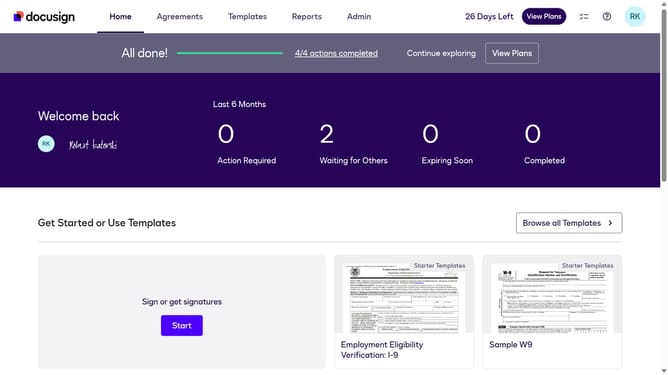
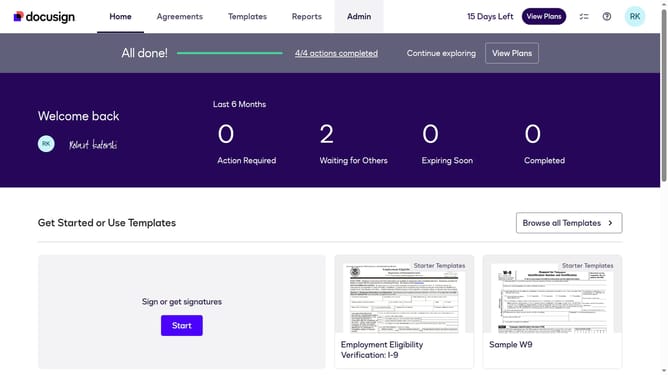
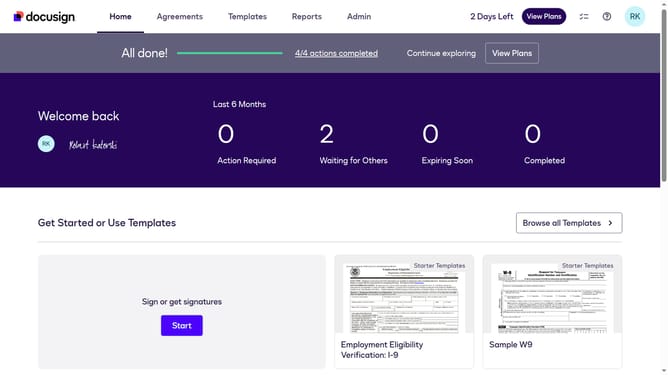
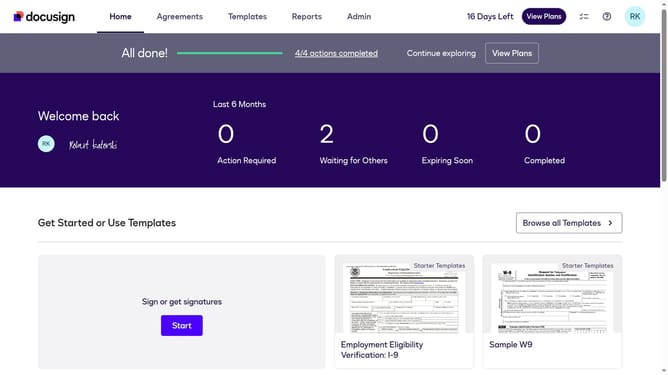
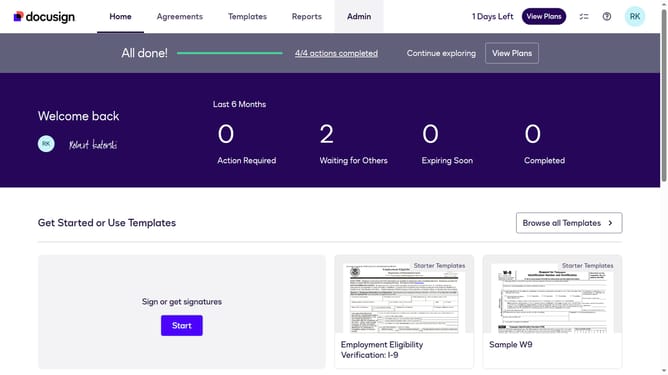
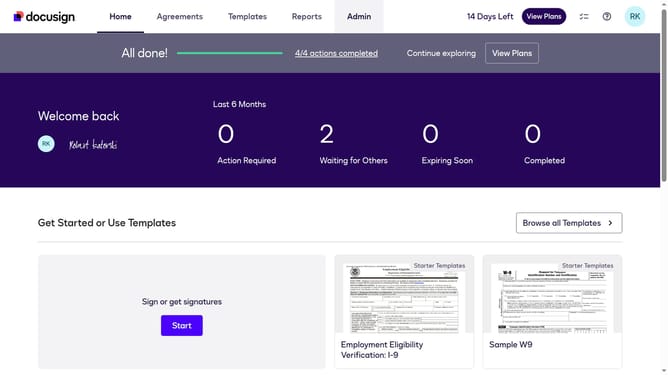
- First click on the "Admin" tab in the top navigation menu
- Then scroll down the page to view additional options in the sidebar
- Next click on "Signing Settings" in the left sidebar under the "SIGNING AND SENDING" section
- Then click on the "In-session Landing Pages" tab in the Signing Experience section
- Next click on the "Viewed completed, voided, or declined envelope" text field and clear the existing URL
- Then scroll down the page to view the "Save Changes" button
- Finally click on the "Save Changes" button to apply the configuration
Why should you remove the landing page for viewed, completed, voided, or declined envelopes in DocuSign
DocuSign offers a seamless way to manage and sign documents electronically, enhancing efficiency and ease in document workflows.
Removing the landing page for viewed, completed, voided, or declined envelopes streamlines the user experience by reducing unnecessary navigation steps.
This feature saves time, maintaining focus on essential tasks and decluttering the signing process.
Overall, it contributes to a faster, more intuitive interaction, promoting productivity and enhancing satisfaction for both senders and recipients.
Last update