How to set auto-navigation to page then navigate blank required fields in DocuSign
Here is how to set auto-navigation to page then navigate blank required fields in docusign
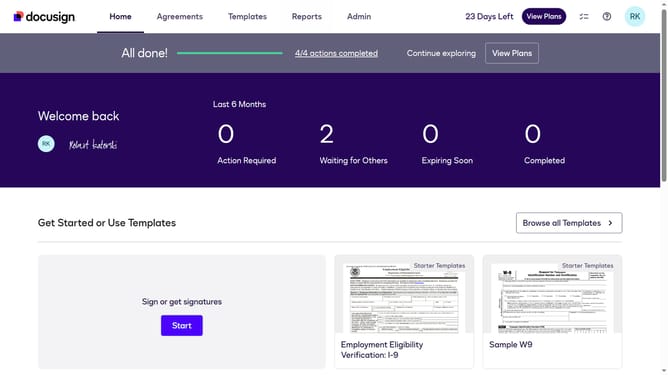
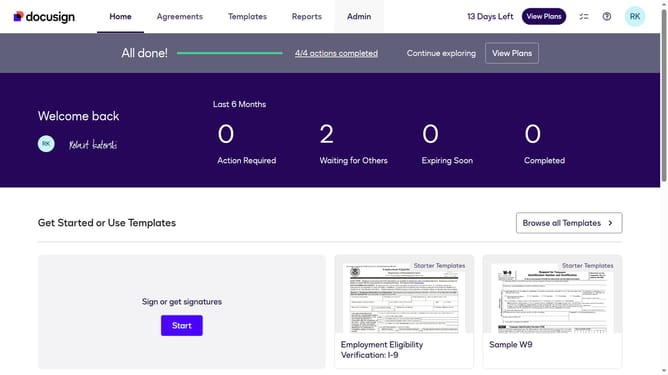
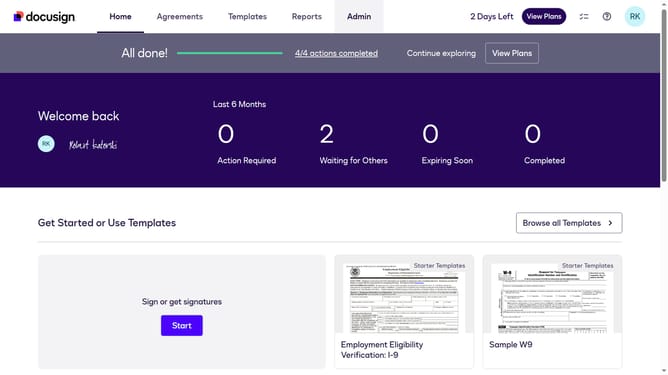
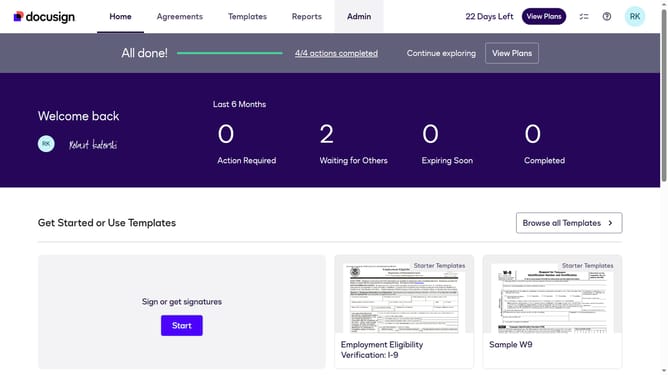
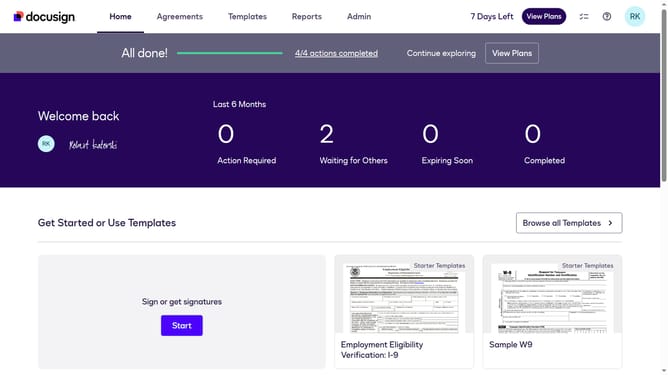
- First click on the "Admin" link in the top navigation menu
- Then scroll down the page to view additional settings options
- Next click on the "Signing Settings" option in the left sidebar under the "SIGNING AND SENDING" section
- Then click on the "Auto-Navigation" dropdown menu and select the "Page then Navigate blank required fields" from the options
- Next scroll down the page to view more options
- Finally click on the "Save Changes" button to apply the modified settings
Why should you set auto-navigation to page then navigate blank required fields in DocuSign
DocuSign empowers digital workflows by facilitating secure and easy electronic signatures.
The auto-navigation feature in DocuSign efficiently guides users through documents, directly leading them to blank, required fields.
This streamlined process not only saves time but also reduces errors, ensuring all necessary sections are completed before submission.
By enhancing user experience and improving document accuracy, auto-navigation supports more effective and consistent electronic signing processes.
Last update