How to remove admin rights from a user in Monday.com
Here is how to remove admin rights from a user in monday.com
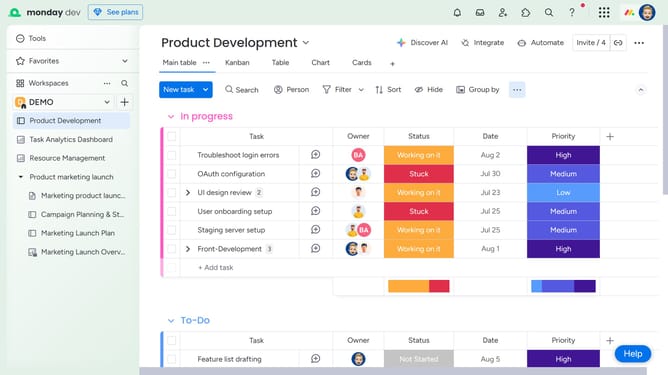
- First click on the profile picture in the top-right corner of the header
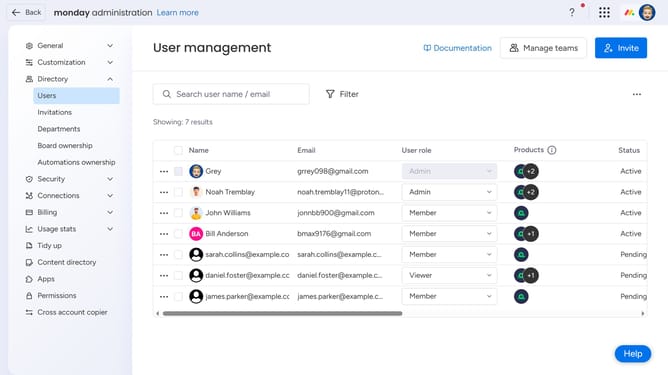
- Then click on the "Administration" option in the dropdown menu
- Next click on the "Directory" section in the left sidebar
- Click on the "Users" option under the Directory section
- From the user list, locate the admin user you want to remove
- Then click on the "User role" dropdown menu next to the user's name
- Finally choose a new role from the dropdown menu (Member, Viewer or Guest)
- The user will no longer have admin rights but will retain access according to their new role
Why should you remove admin rights from a user in Monday.com
Monday.com is a versatile work operating system designed to streamline team management and enhance productivity.
To maintain security and control within your team, you can easily remove admin rights from a user when necessary.
This feature ensures that only authorized personnel have access to sensitive information and administrative functionalities, minimizing risks and potential mismanagement.
By managing admin rights efficiently, you can safeguard your workflows and maintain efficient team collaboration.
Last update