How to preview your brand voice settings in Customer.io
Here is how to preview your brand voice settings in customer.io
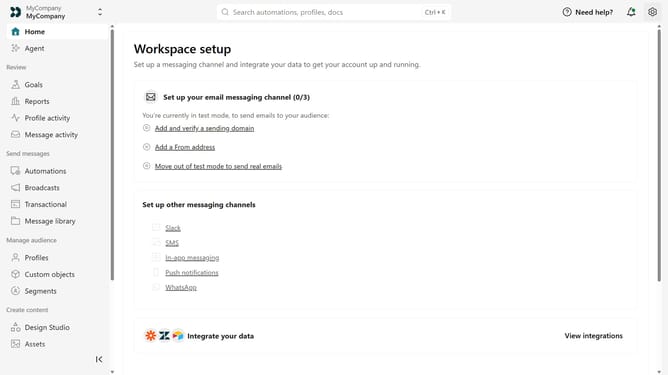
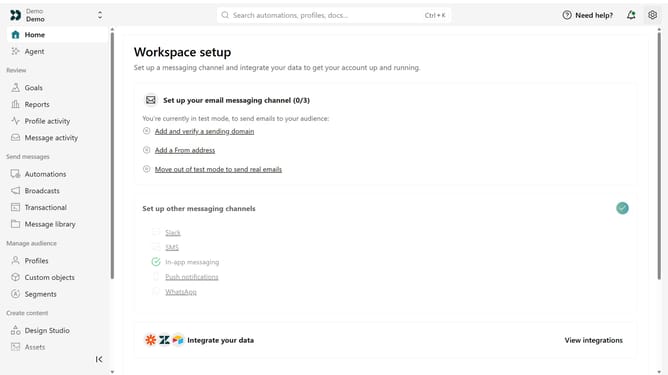
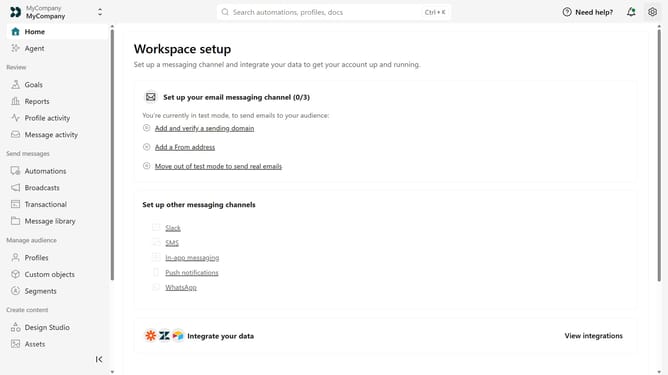
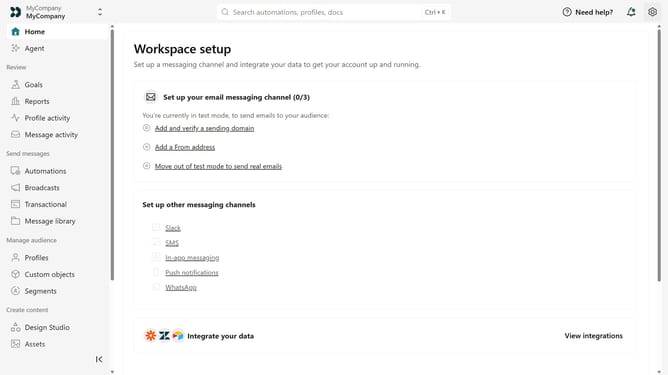
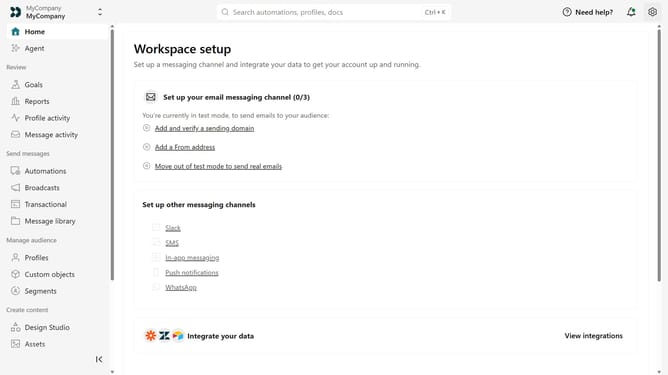
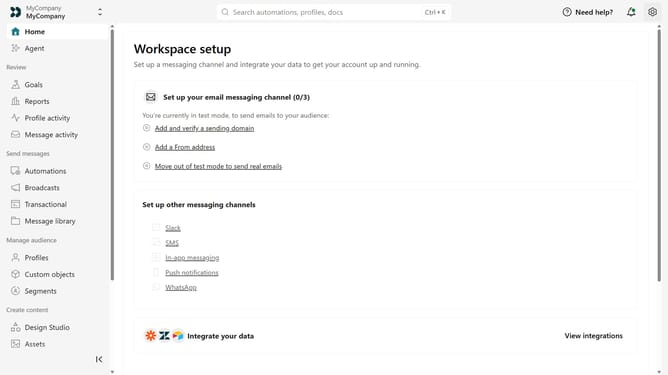
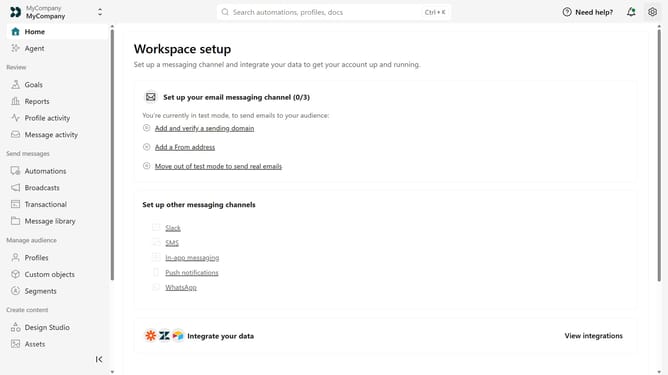
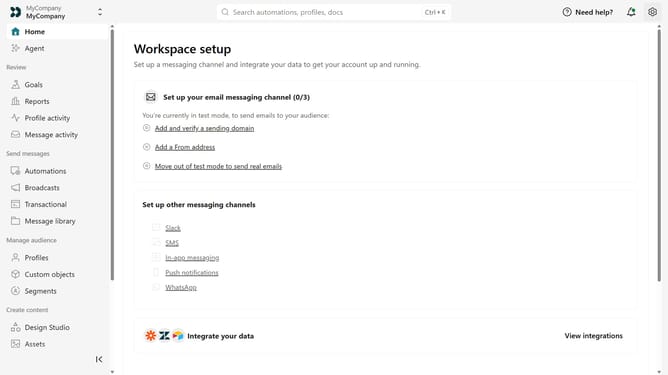
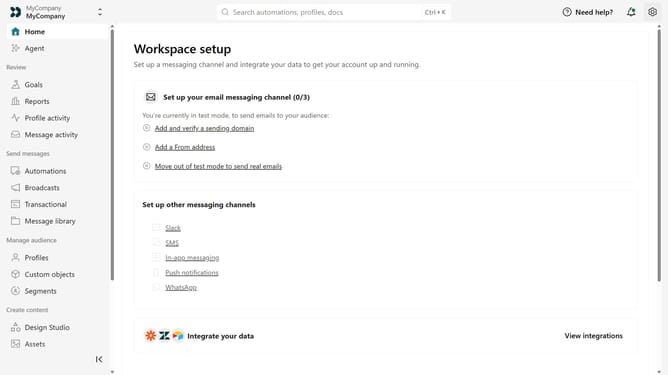
- First click on the settings icon in the top right corner
- Click on "Workspace settings" in the dropdown menu
- Next, click on "Business context" in the workspace settings
- Under "Tone & Voice", configure your brand voice settings
- Under "Message channel", select your desired channel
- Then enter your sample prompt in the "Sample input" field
- Finally, click on the "Get preview" button
Why should you How to preview your brand voice settings in Customer.io
Customer.io is a comprehensive platform designed to help businesses enhance their customer engagement through thoughtful and personalized messaging.
A standout feature of Customer.io is the ability to preview your brand voice settings. This tool allows you to see how your content will appear to your audience before it's live, ensuring consistency in your brand's messaging and tone.
By previewing your brand voice, you can make strategic adjustments that resonate with your audience, maintaining a coherent and compelling communication strategy.
This feature negates the need for last-minute corrections, saving time and enhancing your brand's credibility and reliability.
Last update