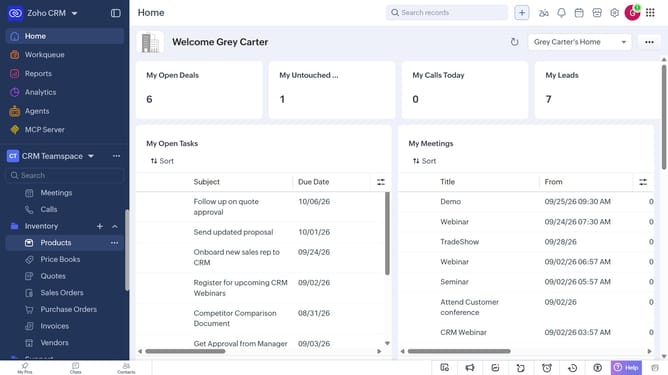
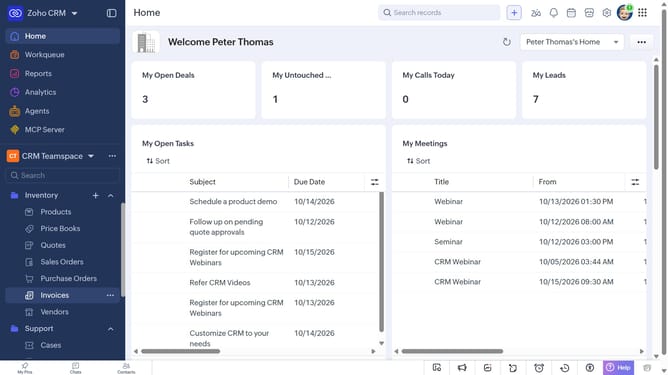
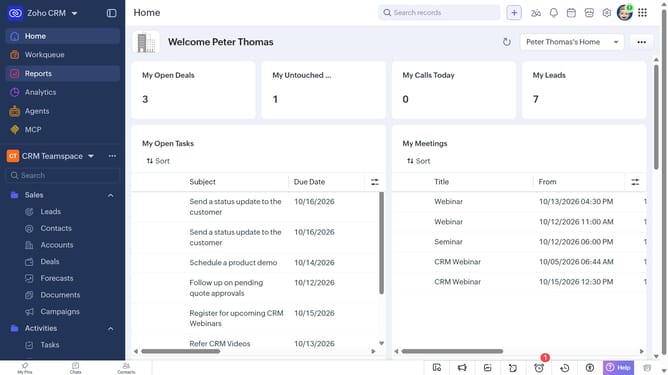
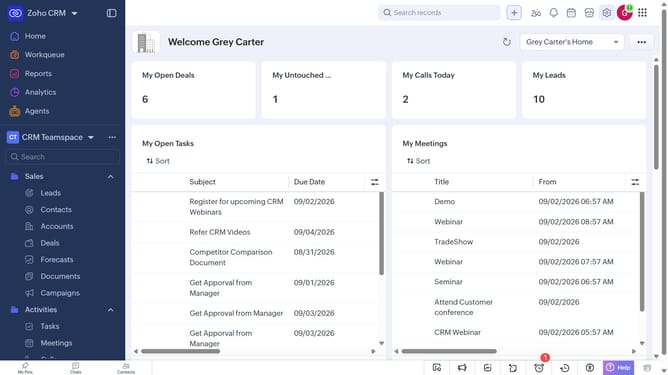
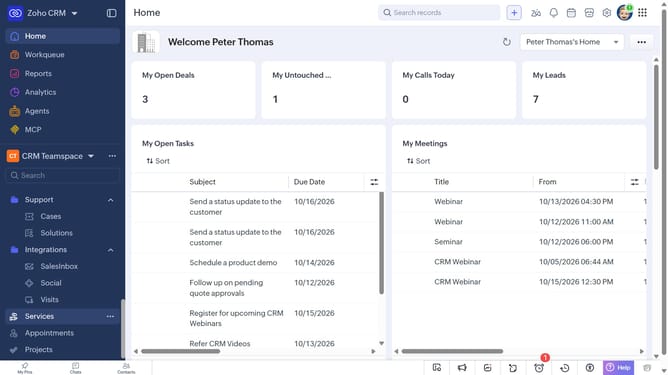
How to preview different font sizes on Zoho CRM
Here is how to preview different font sizes on zoho crm
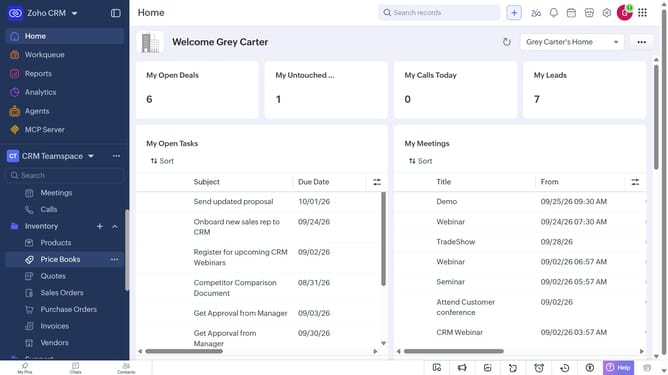
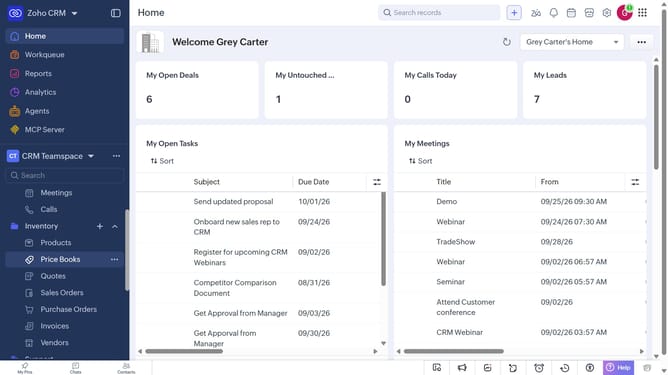
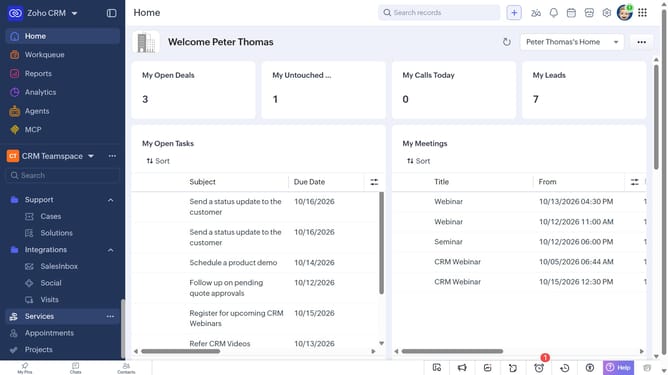
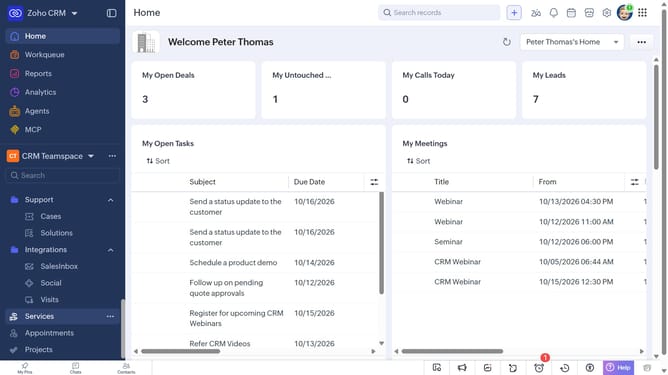
- First click on the settings icon in the top menu
- Next click on "Personal Settings" under the "General" section
- Click on the "Accessibility" tab
- After that, click on the "Vision" tab
- Then, locate the "Font Size" section
- Click on "Live Preview" to open the font size preview
- Finally, adjust the font size slider to preview the different font sizes
Why should you How to preview different font sizes on Zoho CRM
Zoho is a leading cloud-based software suite designed to enhance productivity and streamline business operations.
With the ability to preview different font sizes on Zoho CRM, users can effortlessly ensure their content is visually appealing and professional. This feature allows you to see exactly how your text will appear, enabling quick adjustments to enhance readability and customization.
By using this feature, you gain a clearer understanding of how your communications will look, leading to more consistent branding and improved user engagement. It simplifies design choices, providing greater confidence in content presentation.
Last update