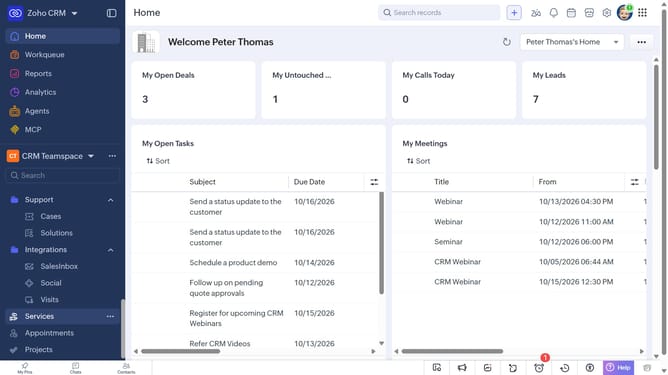
How to mark a service as temporarily unavailable on Zoho CRM
Here is how to mark a service as temporarily unavailable on zoho crm
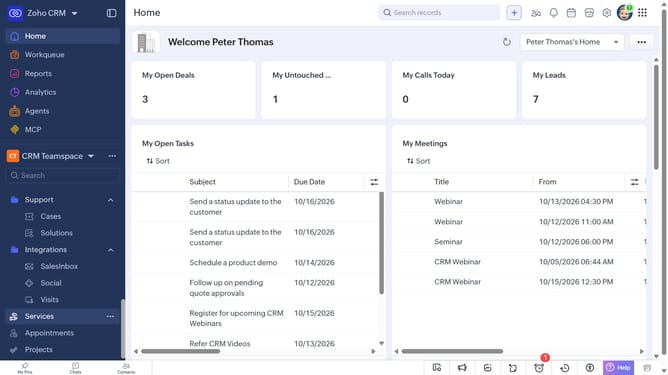
- First, click on "Services" in the left sidebar menu
- Next, click on the service you want to mark as temporarily unavailable
- Click on the “More Options” button
- Select “Mark as temporarily unavailable” from the dropdown menu
- In the "Mark as Temporarily Unavailable" modal, select how long the service should remain unavailable
- Finally, click the "Save" button
Why should you How to mark a service as temporarily unavailable on Zoho CRM
Zoho is a powerful suite designed to streamline business tasks by offering comprehensive cloud-based solutions.
Marking a service as temporarily unavailable on Zoho CRM ensures seamless communication and helps manage client expectations efficiently. This feature is invaluable for maintaining transparency with clients during service downtime or updates.
Utilizing this capability supports reliability and builds trust, as it lets clients know you're proactive in handling service changes. It also aids in internal organization, allowing teams to plan and prioritize effectively without disruptions.
Last update