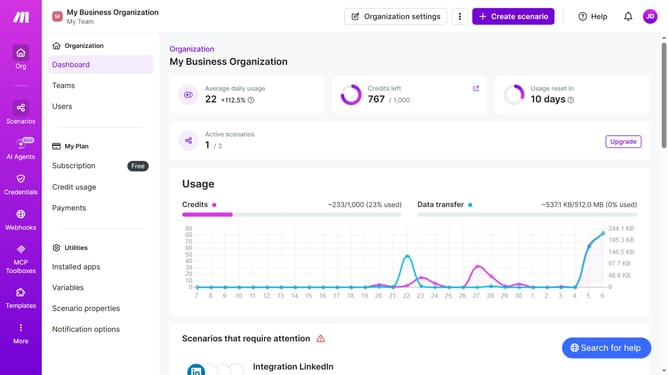
How to manage running schedule on a specific date of a Zapier scenario in Make
Here is how to manage running schedule on a specific date of a zapier scenario in make
- First click on "Scenarios" in the left sidebar
- Then click on the Zoom scenario
- Next click on "Options" button
- After that, select "Scheduling" from the dropdown menu
- Then click on the "Run scenario" dropdown to change schedule type
- Click on "Daily" to select daily schedule
- Finally click on "Save" button
Why should you manage running schedule on a specific date of a Zapier scenario in Make
Make is an intuitive automation software that seamlessly connects your favorite apps and services to enhance productivity.
Managing a running schedule for a Zapier scenario on a specific date within Make lets you tailor automation to fit precise project timelines and deliverables.
This functionality is perfect for businesses that rely on timely data processing, allowing for more efficient project management and avoiding unnecessary delays.
By using this feature, teams stay synchronized, ensuring actions occur exactly when needed, optimizing workflow and efficiency.
Last update