How to link a page section in a dropdown in Webflow
Here is how to link a page section in a dropdown in webflow
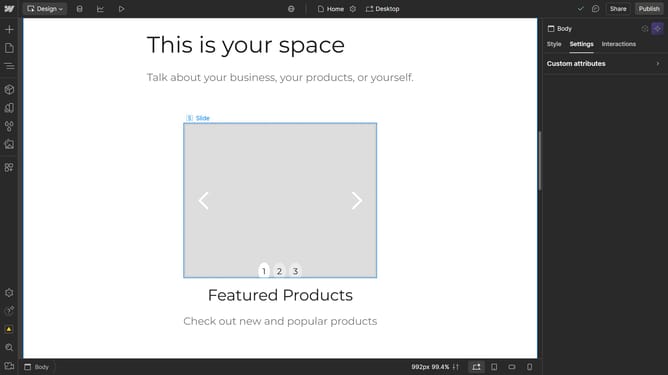
- First click on the "Dropdown Toggle" element in the main content area
- Then click on "Dropdown settings" option in the right sidebar
- Next click on "Show" button in the Dropdown settings panel
- Click on "Link" item in the dropdown menu
- Select "Link settings" in the right sidebar
- Click on the "Page Section" icon in the Link settings panel
- Click on the dropdown labeled "Choose a page section..."
- Finally select an option from the page section dropdown list
Why should you link a page section in a dropdown in Webflow
Webflow is a powerful platform that allows users to build and design responsive websites with ease and flexibility.
Linking a page section in a dropdown within Webflow makes navigation seamless and intuitive for users by allowing them to jump directly to relevant information. This feature enhances user experience, making websites more interactive and cohesive.
By streamlining the navigation process, user engagement can be significantly improved, leading to higher retention rates and a more satisfying browsing experience overall.
Last update