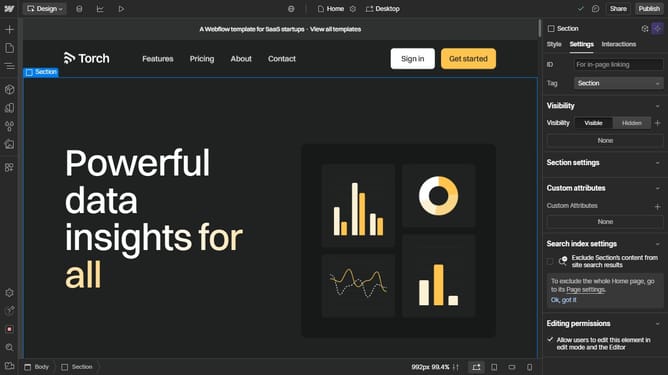
How to link to a section on another page in Webflow?
Here is how to link to a section on another page in webflow
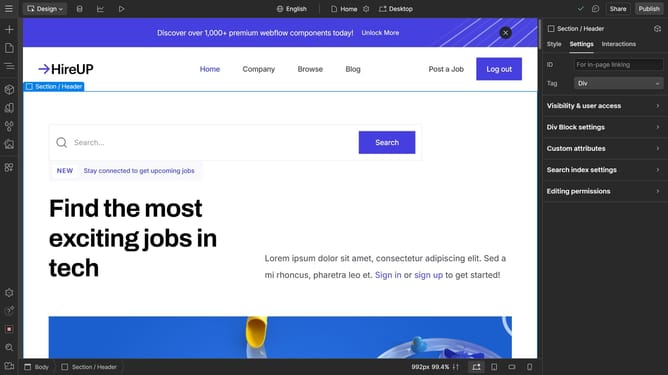
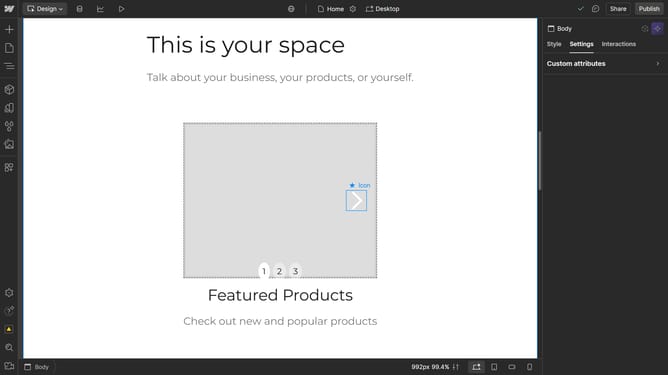
- 1- First, select the section you want to link to on the target page
2- Open the Settings tab in the sidebar, enter a unique name in the ID field, and remember it
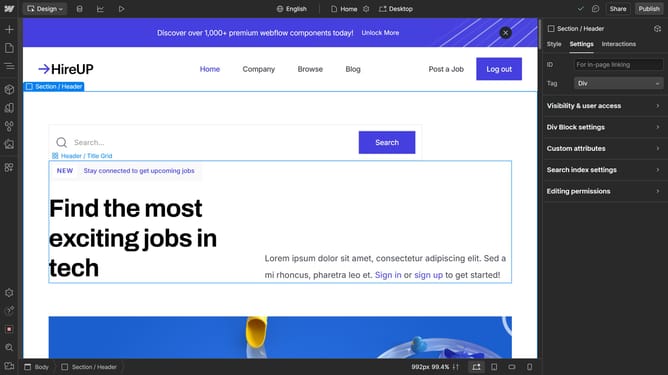
3- Click on the "Navigator" panel in the left sidebar
4- Select the page where you want to create the link (the source page)
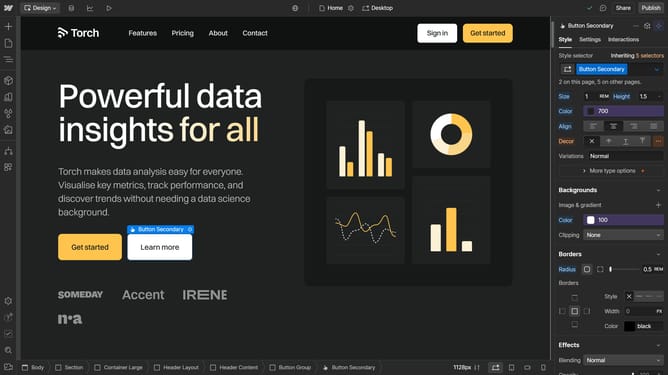
5- Choose an element to serve as the link
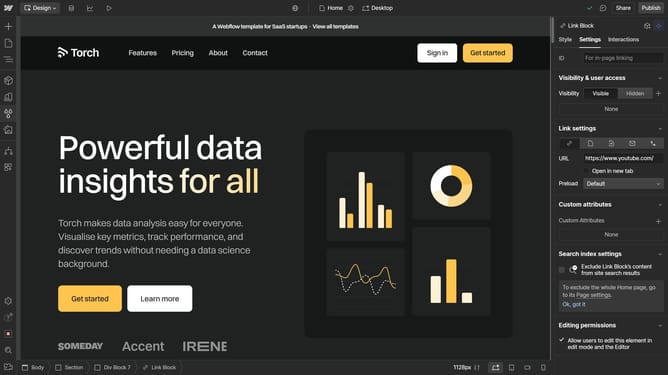
6- Next, in the Settings tab of the right sidebar, find the "Link Settings" section
7- Enter the URL in this format: "your-page-url#unique-id", replacing "your-page-URL" with the target page's URL and "unique-id" with the ID you set
8- Now click on preview mode to see the changes in action
9- While in preview mode, click on the button
9- You'll see that it directs you to the linked section
Why should you link to a section on another page in Webflow?
Webflow is a streamlined platform empowering designers to create stunning, responsive websites visually.
One of its powerful features is the ability to link to specific sections on different pages, enhancing navigation fluidity. This feature allows users to create seamless web experiences, where visitors can jump directly to relevant content without scrolling endlessly. By using this linking capability, developers and designers ensure their web pages are more connected and user-friendly, which ultimately leads to increased visitor engagement and a more satisfying user experience.
Last update