How to invite a member to all workspaces in Customer.io
Here is how to invite a member to all workspaces in customer.io
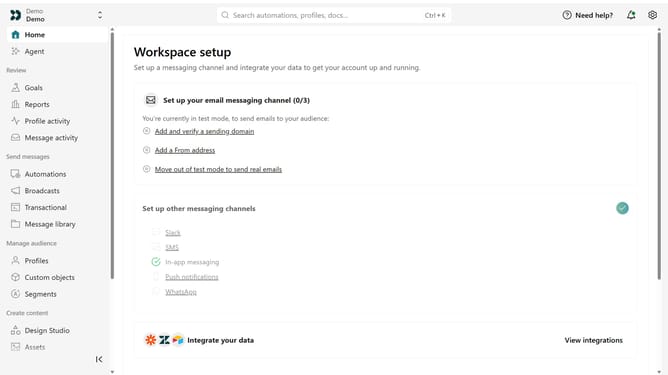
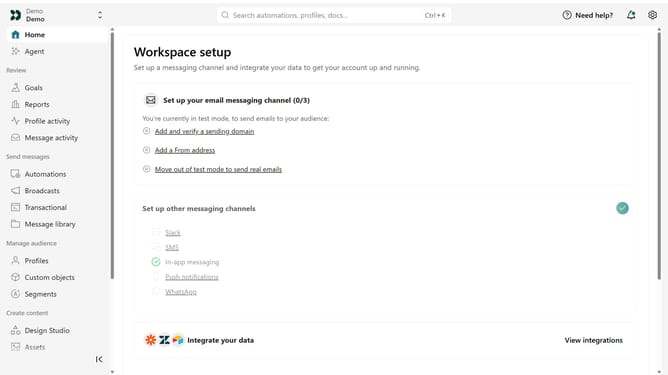
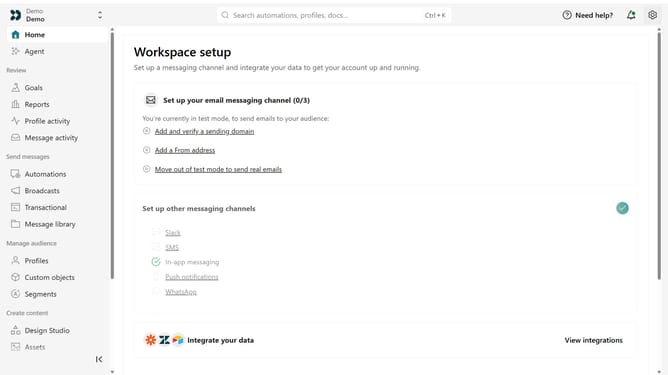
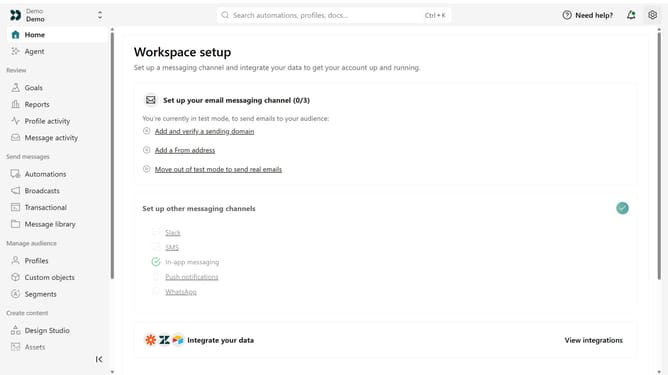
- First click on the settings icon in the top right corner
- Click on "Invite teammate" in the dropdown menu
- Next, enter the new team member's details
- Under "Match permissions", optionally select an existing team member to copy their permissions as a starting point
- After that, click on the "Account level permissions" dropdown
- Select "Member" from the dropdown menu
- Under Workspace level permissions, select "All"
- Next, click on the role dropdown menu
- Then, select the appropriate workspace role
- Finally click on the "Send invite" button
Why should you How to invite a member to all workspaces in Customer.io
Customer.io is a powerful platform designed to automate and personalize customer engagement effortlessly.
Inviting a member to all workspaces in Customer.io ensures seamless collaboration across various projects. This feature streamlines the onboarding process, making it quick and efficient for team members to access multiple areas without repeating steps.
By utilizing this feature, teams benefit from enhanced coordination, saving time and reducing the risk of errors. It encourages productivity and fosters a collaborative atmosphere, essential for achieving goals effectively.
Last update