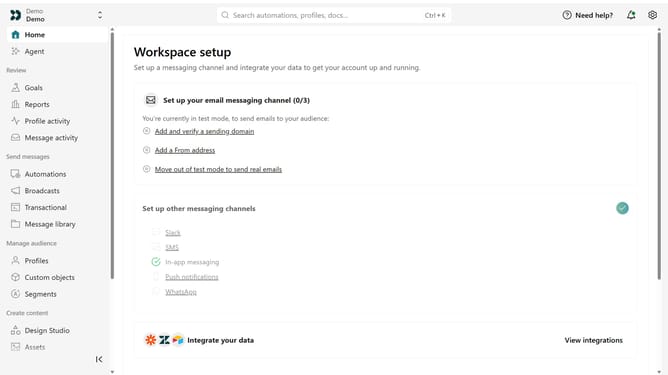
How to invite a member as an Author to all workspaces in Customer.io
Here is how to invite a member as an author to all workspaces in customer.io
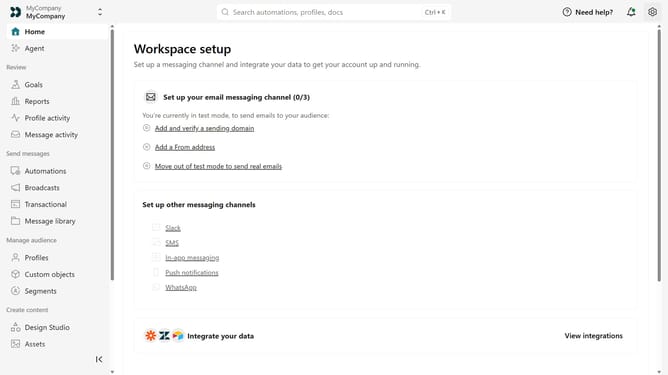
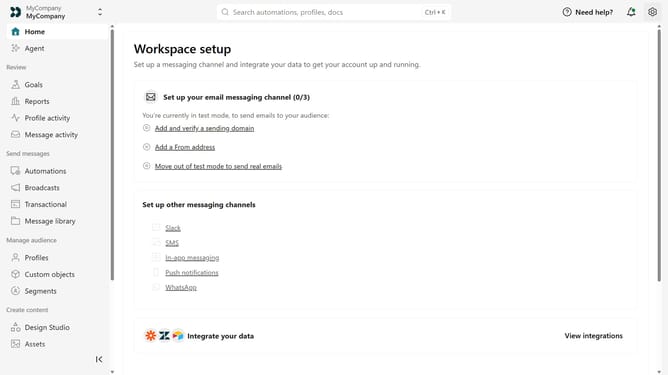
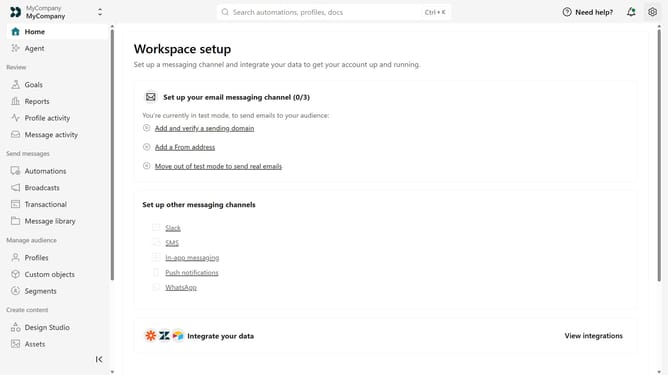
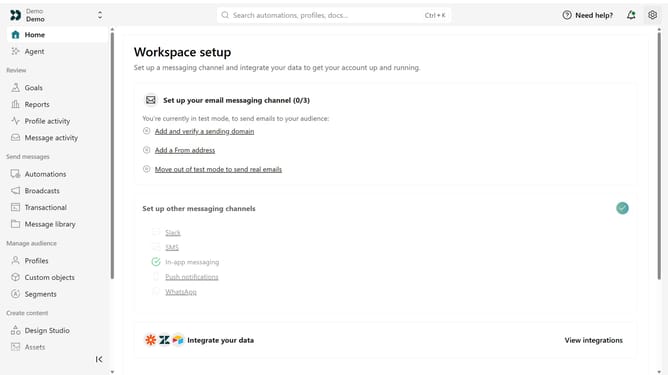
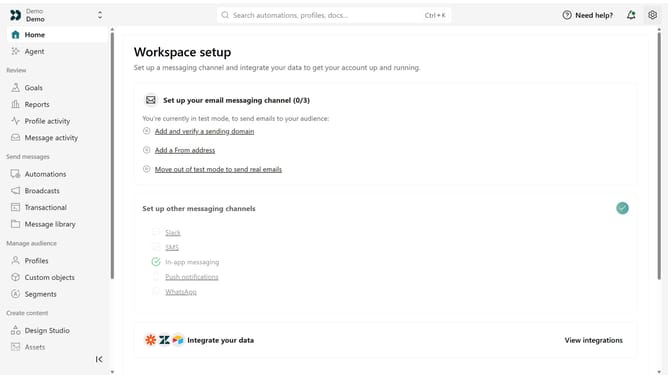
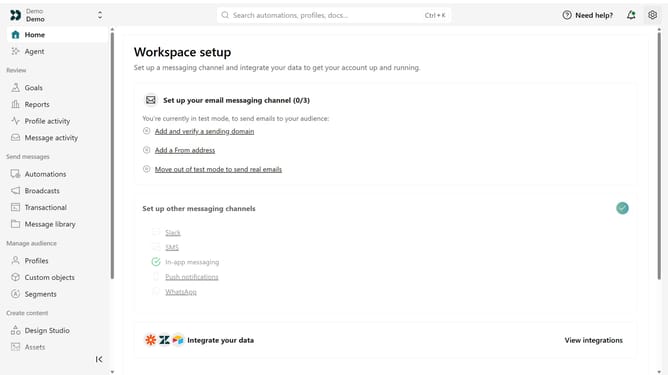
- First click on the settings icon in the top right corner
- Click on "Invite teammate" in the dropdown menu
- Next, enter the new team member's details
- Under "Match permissions", optionally select an existing team member to copy their permissions as a starting point
- After that, click on the "Account level permissions" dropdown
- Select "Member" from the dropdown menu
- Under Workspace level permissions, select "All"
- Next, click on the role dropdown menu
- Then, select "Author" as the role
- Finally click on the "Send invite" button
Why should you How to invite a member as an Author to all workspaces in Customer.io
Customer.io empowers businesses to efficiently engage their customers through personalized messaging.
Inviting a member as an Author to all workspaces in Customer.io significantly streamlines team collaboration.
By enabling a seamless invitation process, it fosters team efficiency, ensuring that all authorized individuals have the capability to contribute effectively across multiple projects without restrictions.
This feature supports a cohesive working environment, enhancing productivity and helping teams deliver consistent, quality communication strategies.
Last update