How to invite a member as a Viewer to all workspaces in Customer.io
Here is how to invite a member as a viewer to all workspaces in customer.io
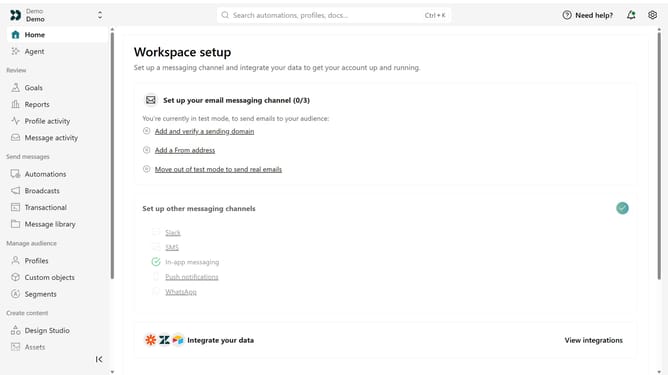
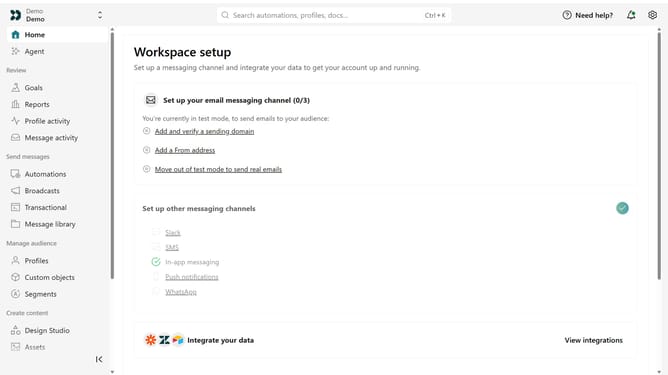
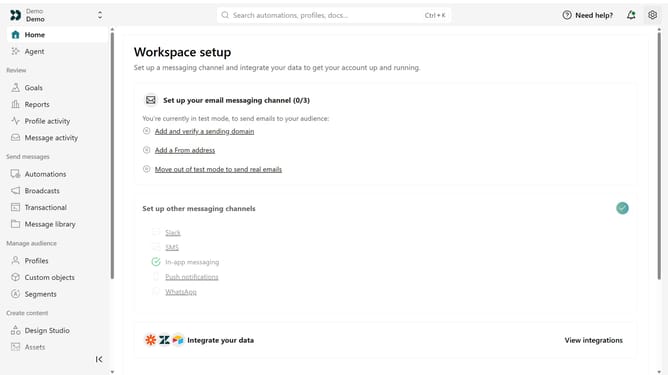
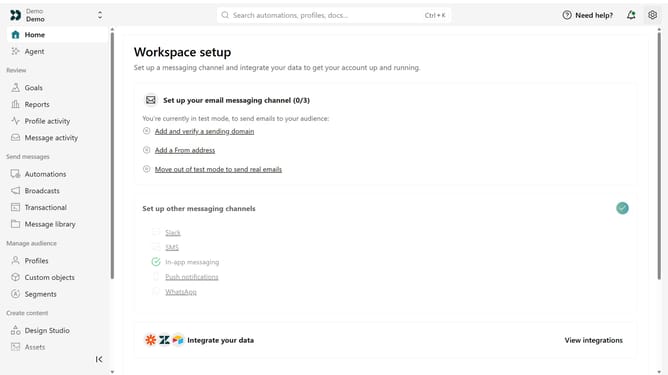
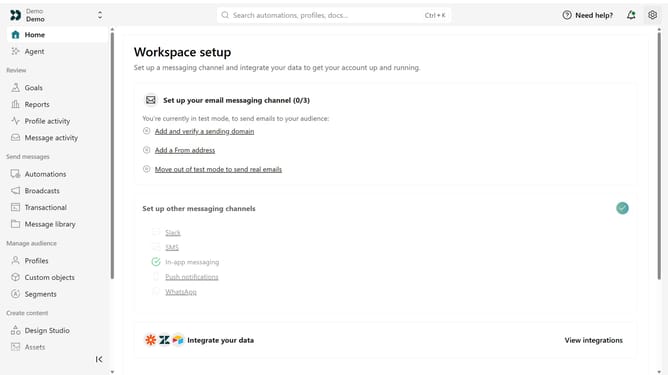
- First click on the settings icon in the top right corner
- Click on "Invite teammate" in the dropdown menu
- Next, enter the new team member's details
- Under "Match permissions", optionally select an existing team member to copy their permissions as a starting point
- After that, click on the "Account level permissions" dropdown
- Select "Member" from the dropdown menu
- Under Workspace level permissions, select "All"
- Next, click on the role dropdown menu
- Then, select "Viewer" as the role
- Finally click on the "Send invite" button
Why should you How to invite a member as a Viewer to all workspaces in Customer.io
Customer.io is a dynamic platform designed to help businesses engage with their customers effectively through personalized communication.
Inviting a member as a Viewer to all workspaces in Customer.io allows for streamlined collaboration by granting read-only access across all project environments without risking changes.
This feature is beneficial for stakeholders who need to stay informed of project progress and insights. It enhances transparency and keeps everyone aligned with the project's goals, all without compromising data security and integrity.
Last update