How to change login session expiration in Customer.io
Here is how to change login session expiration in customer.io
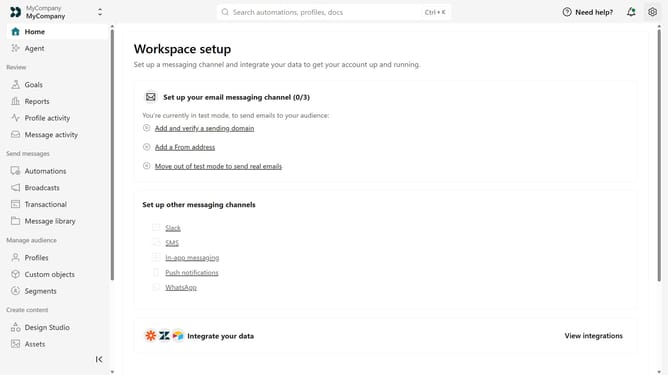
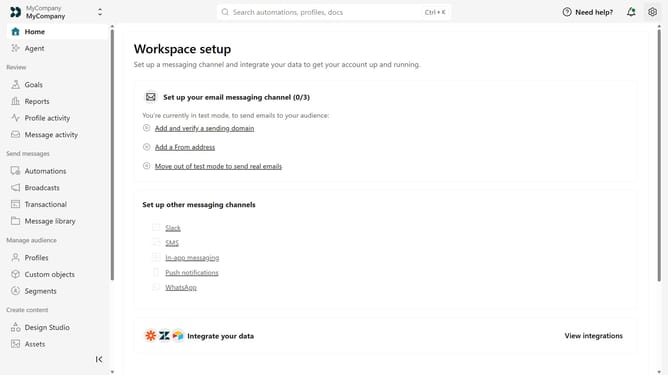
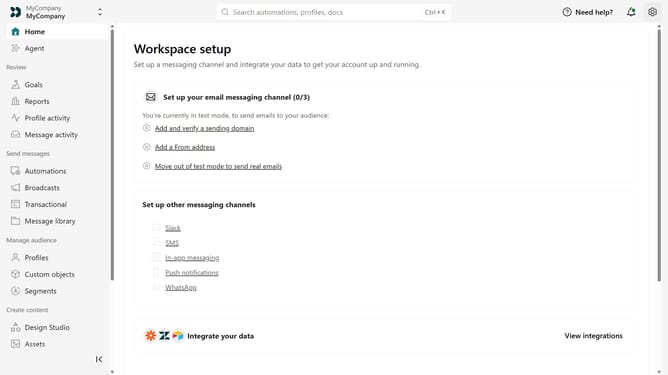
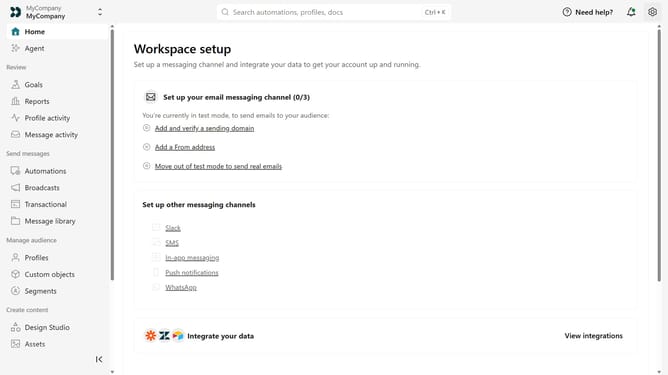
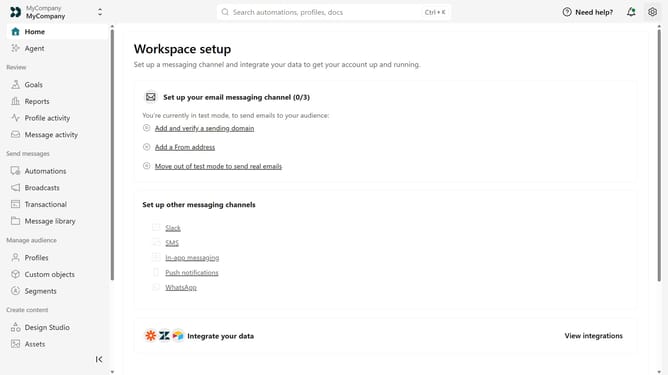
- First click on the settings icon in the top right corner
- Click on "Account settings" in the dropdown menu
- Next, click on "Security" in the account settings
- Locate the "Login session expiration" section
- Then update the number or change the time unit between "Hours" and "Days"
- Finally click on the "Save changes" button
Why should you How to change login session expiration in Customer.io
Customer.io is a dynamic platform empowering businesses to build and manage automated customer interactions effortlessly.
One of its practical features is the ability to change login session expiration. This feature gives you the flexibility to control how long a user’s session remains active, enhancing both security and user convenience.
By adjusting session duration, you can ensure that sessions are secure while also accommodating user preferences, improving the overall experience.
Ultimately, this small adjustment in settings can lead to significant benefits in terms of both security and customer satisfaction.
Last update