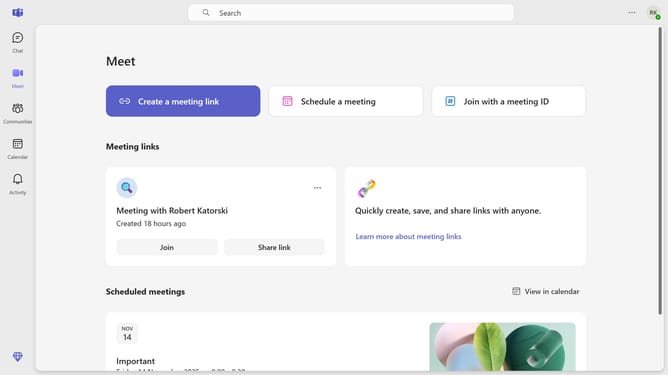
How to insert a link in a message in Microsoft Teams
Here is how to insert a link in a message in microsoft teams
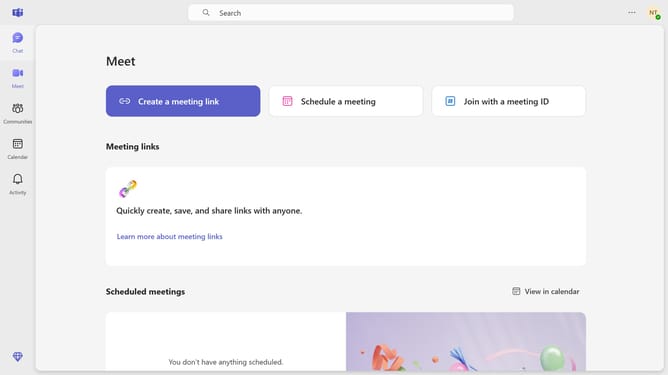
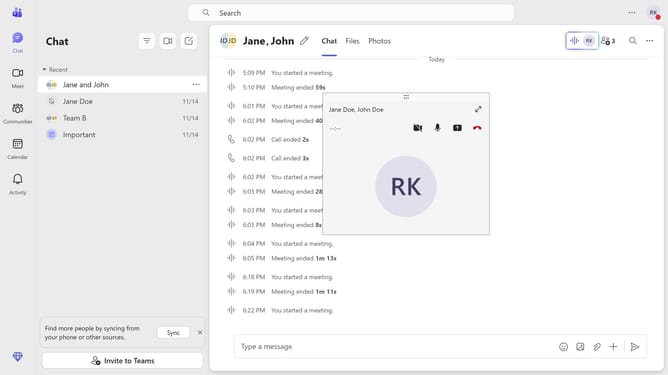
- First click on the "Chat" icon in the top right corner of the interface
- Click a conversation in the chat list
- Click the "+" button in the message composition area at the bottom
- Select "Show Formatting options" from the actions menu
- Click on the "Link" button in the formatting toolbar
- Enter text in the "Text to display" field and type in your preferred text for the link
- Click the "Link to an existing file or web page" field in the Insert link dialog and type in or paste the link that you want to use
- Click the "Insert" button to add the link
- Finally click the "Send" button in the bottom right to send the message
Why should you insert a link in a message in Microsoft Teams
Microsoft Teams is a powerful collaboration tool designed to streamline communication and teamwork.
Inserting a link in a message within Microsoft Teams is a valuable feature that enhances how information is shared. By embedding hyperlinks directly in your messages, you provide teammates with quick access to crucial resources without leaving the chat.
This feature promotes efficient communication, helping teams move seamlessly between discussions and the digital resources they rely on. It's a simple, yet effective way to keep everyone connected and informed without interruption.
Last update