How to include time in a date picker field in a form in Zapier
Here is how to include time in a date picker field in a form in zapier
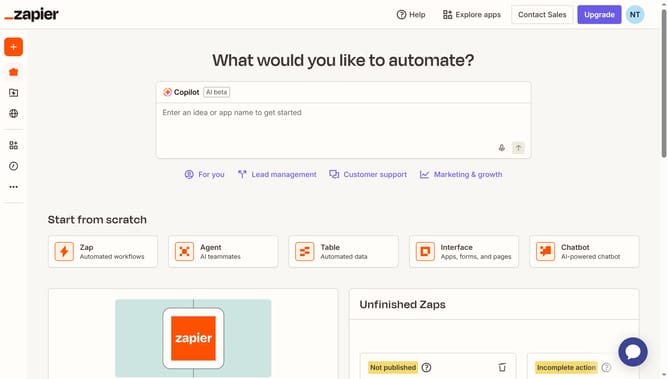
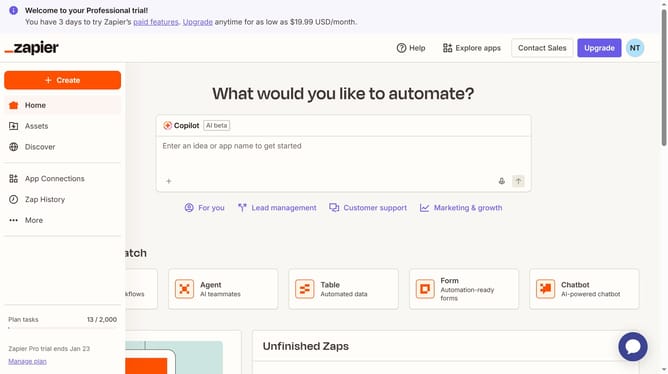
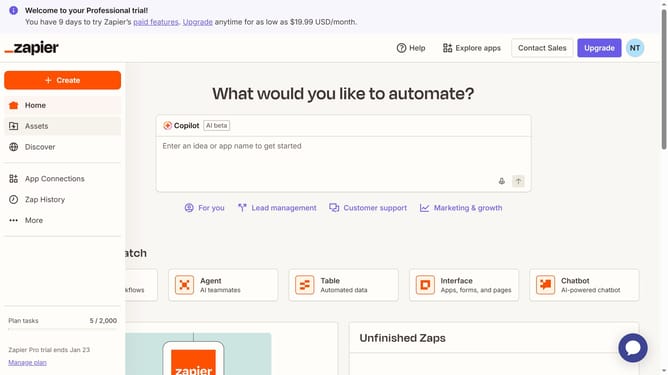
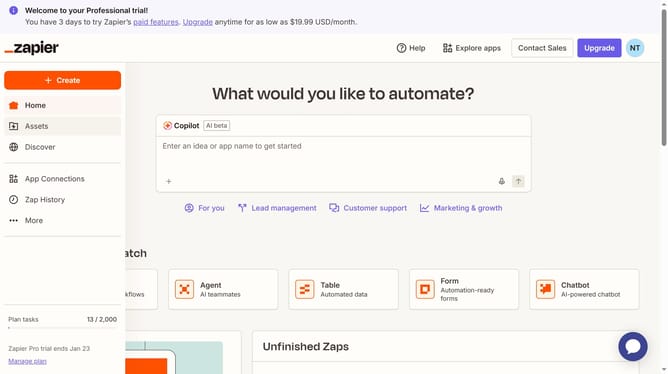
- First click on "Assets" in the left sidebar navigation menu
- Then click on "Forms" in the left sidebar navigation menu
- Next click on the form you want to edit from the list to open it
- Then click on the form card in the "Pages" section
- Then click on the field with a date picker to open field settings
- Then click on the "Include time" dropdown menu in the right panel field settings
- Finally click on "Yes" option in the "Include time" dropdown menu
Why should you include time in a date picker field in a form in Zapier
Zapier connects your apps and automates workflows, enhancing productivity seamlessly.
Including time in a date picker field in a Zapier form enriches scheduling functionalities. It allows users to select precise time slots, not just dates, ensuring streamlined and accurate data collection.
This feature is particularly beneficial for businesses requiring exact scheduling, such as appointments or deadlines. By offering granular control over time, it enhances precision and efficiency in operations.
Using this feature minimizes errors and manual adjustments, creating a smoother user experience and optimized workflow integration.
Last update