How to hide the last modified column in permission profiles in DocuSign
Here is how to hide the last modified column in permission profiles in docusign
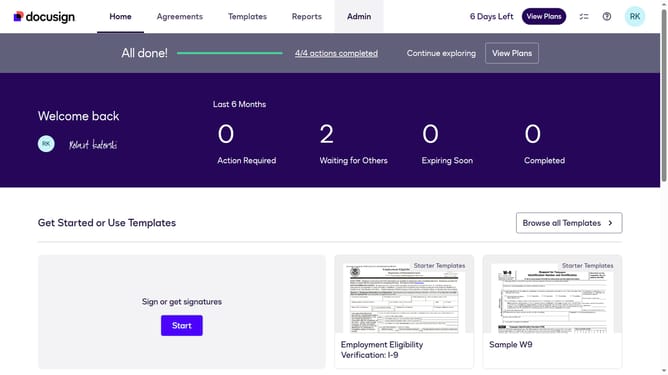
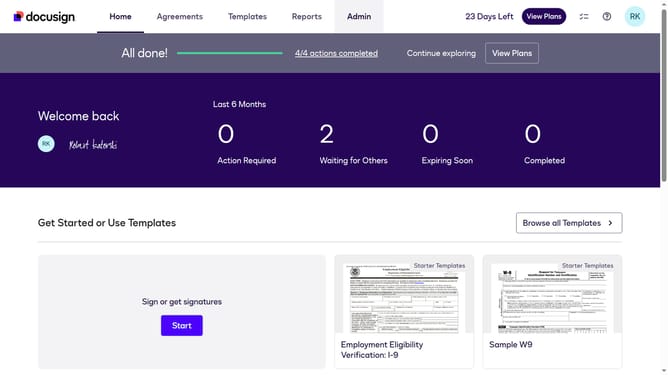
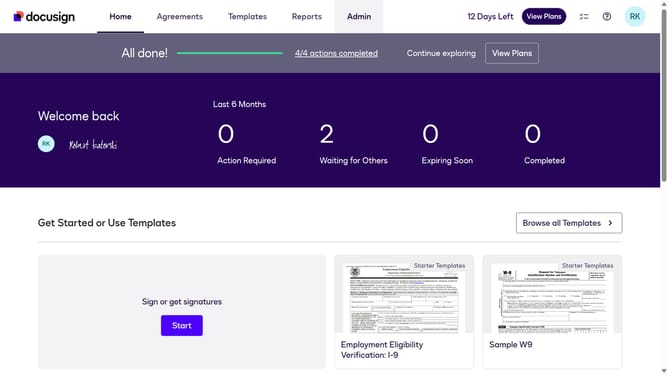
- First click on the "Admin" link in the top navigation menu
- Then click on the settings icon in the top right corner of the page
- Next click on "Permission Profiles" in the left sidebar under the "USERS AND GROUPS" section
- Then click on the column settings icon (gear icon) in the upper right area of the Permission Profiles table
- Next uncheck the "Last Modified" checkbox in the Permission Profile Column Setting dialog
- Finally click on the "Apply" button to save the column settings changes
Why should you hide the last modified column in permission profiles in DocuSign
DocuSign is an innovative platform that streamlines electronic agreements, enhancing productivity and security.
Hiding the last modified column in DocuSign's permission profiles ensures a cleaner interface and simplifies the view, helping users focus on what's key.
This feature boosts privacy, as it can shield sensitive modification data from unnecessary eyes, epitomizing a dedication to customized user experiences.
By minimizing visual clutter, users can work more efficiently, benefiting from a more straightforward and focused digital workspace.
Last update