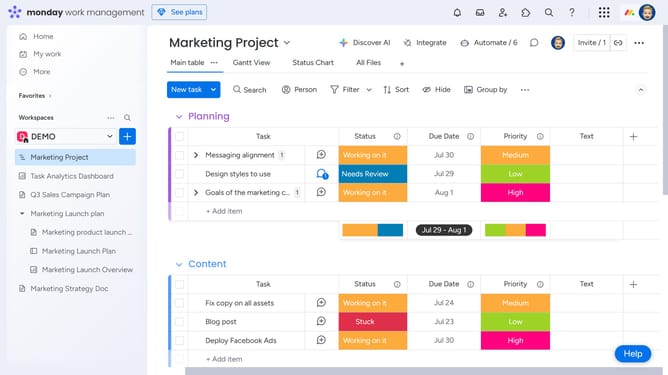
How to filter data in a dashboard in Monday.com
Here is how to filter data in a dashboard in monday.com
- First open the dashboard where you want to apply filters
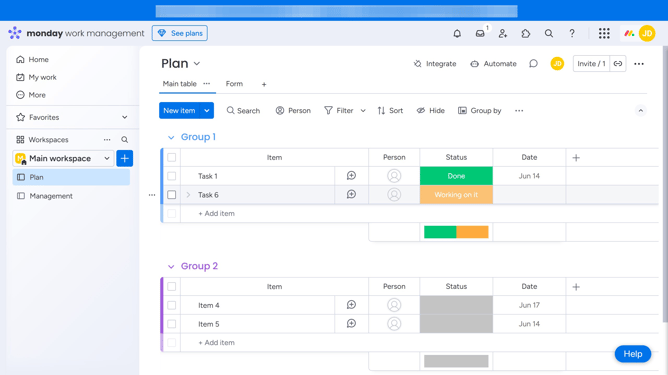
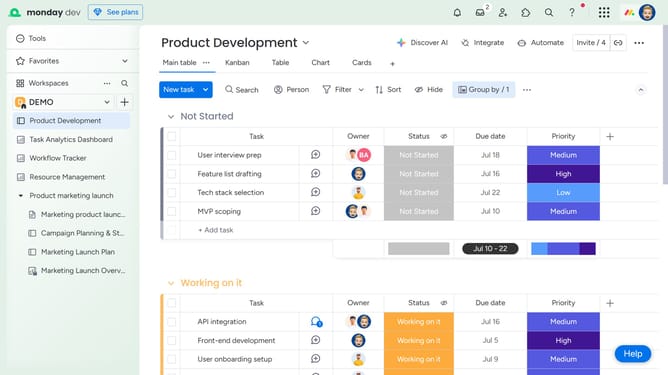
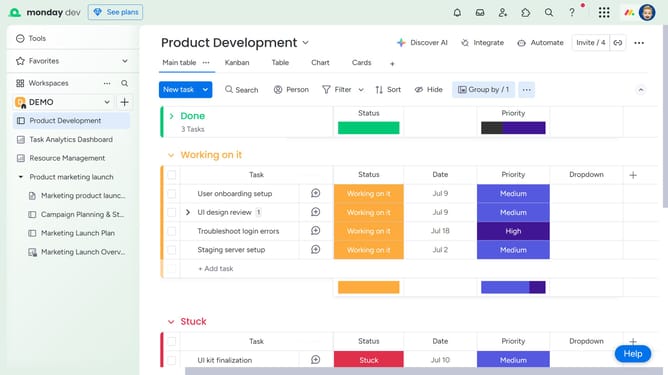
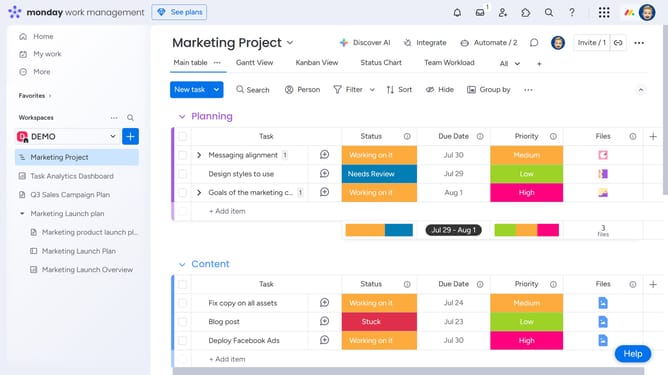
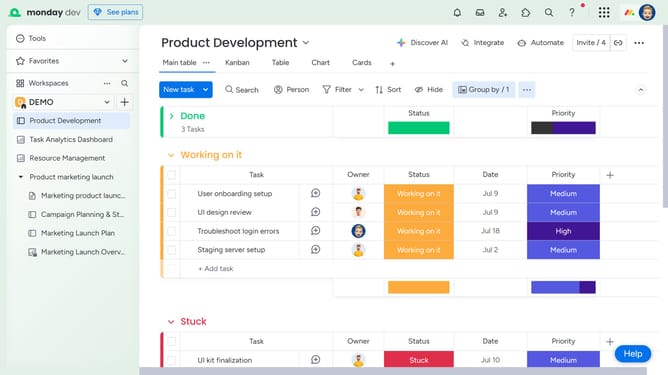
- Next click on the "Filter" button in the top toolbar
- In the filter panel, click on the "Board" dropdown menu
- Then select the board you want to filter by from the list
- Finally, add a filter by choosing a column, setting the condition, and then specify the value
- To add more filtering conditions, click “New filter” if needed
- The dashboard and its connected widgets will update automatically based on the filters applied
Why should you filter data in a dashboard in Monday.com
Monday.com is a versatile work operating system designed to streamline workflows and enhance team collaboration.
In Monday.com, filtering data in a dashboard allows you to focus on what's essential by zeroing in on specific data points. This feature significantly alleviates the complexity of managing large volumes of information by presenting only the most critical insights.
Using filters not only enhances productivity but also aids in making informed decisions faster. It empowers teams to customize views, maintain focus, and drive efficiency by surfacing exactly what they need to see.
Last update