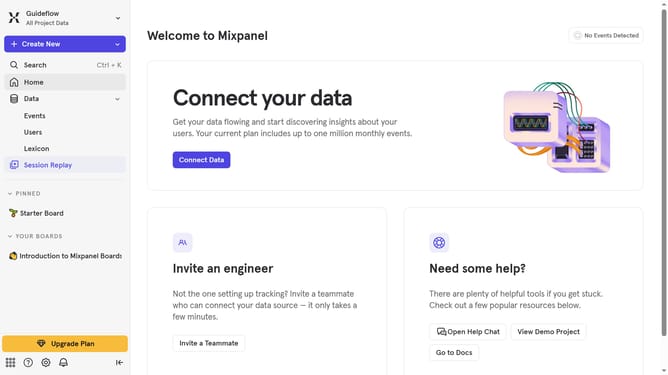
How to filter audit logs by user removed from oganization in Mixpanel
Here is how to filter audit logs by user removed from oganization in mixpanel
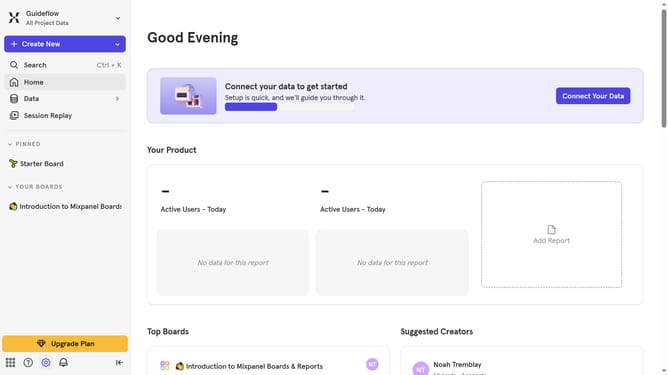
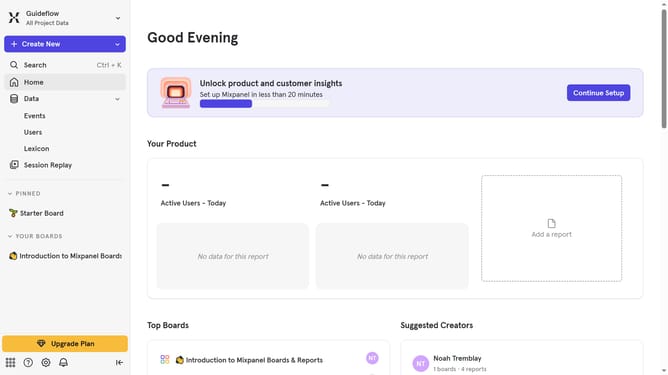
- First click on the settings icon in the bottom left sidebar
- Then hover your mouse cursor over the "Settings" option
- Next, click on the "Organization Settings" option
- In the left panel of the "Settings" page, click on "Audit Log"
- In the "Audit Log" page, click on the "Action" dropdown menu
- Scroll down in the dropdown menu to view more options
- Finally, click on the checkbox next to "User Removed from Organization"
Why should you filter audit logs by user removed from oganization in Mixpanel
Mixpanel is a robust analytics platform designed to help businesses understand user behavior in real-time.
One valuable feature of Mixpanel is the ability to filter audit logs by users removed from the organization. This feature provides an efficient way to track and review changes in team composition, ensuring accountability and security.
By utilizing this filtering ability, organizations can maintain streamlined operations, safeguard sensitive data, and make informed decisions about user management. The clarity and precision it offers helps optimize team workflows and enhances overall productivity.
Last update