How to filter audit logs by user removed from data view in Mixpanel
Here is how to filter audit logs by user removed from data view in mixpanel
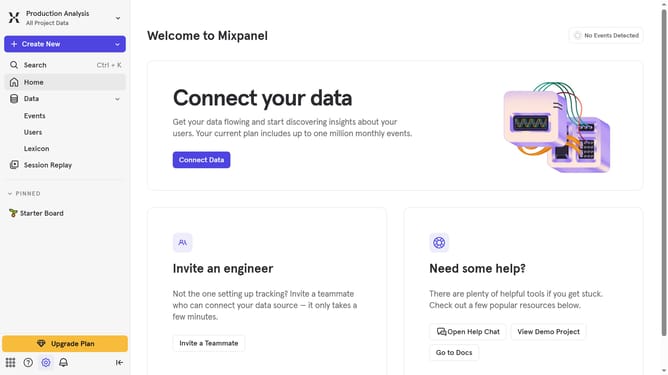
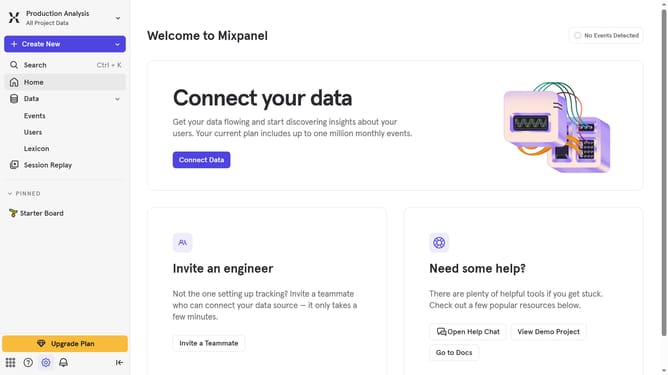
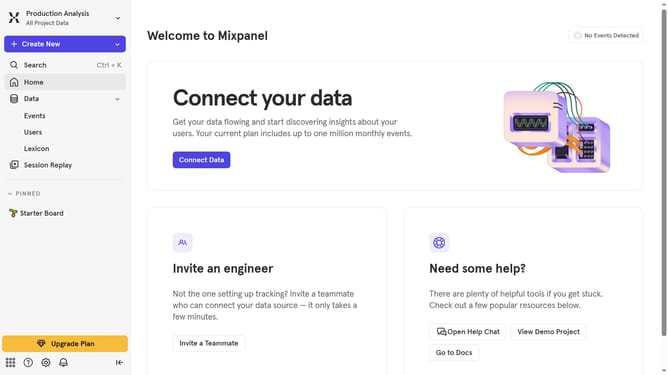
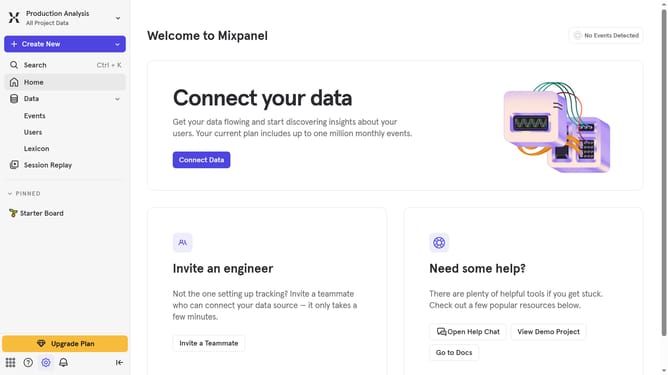
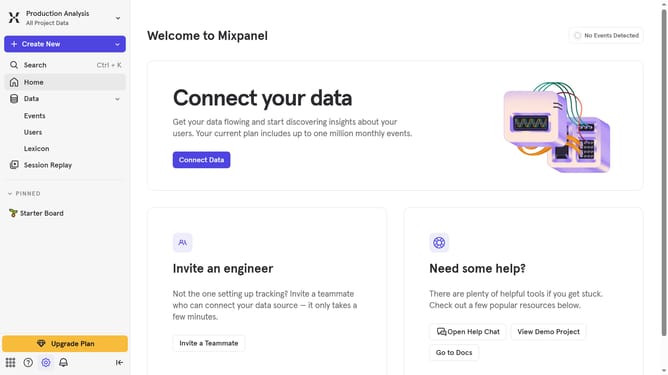
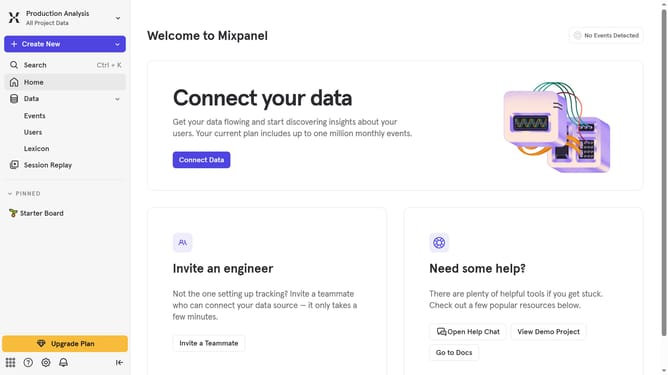
- First click on the settings icon in the bottom left sidebar
- Then hover your mouse cursor over the "Settings" option
- Next click on "Organization Settings" in the subsequent menu
- Then click on "Audit Log" in the left settings menu
- Next click on the "Action" dropdown menu
- Then scroll down in the dropdown menu
- Finally click on the checkbox next to "User Removed from Data View"
Why should you filter audit logs by user removed from data view in Mixpanel
Mixpanel is a powerful tool designed to elevate user engagement through advanced analytics.
With the ability to filter audit logs by users removed from data view, teams can streamline their data management processes with ease. This feature provides a clear path to identify and understand changes in data access within your team.
Utilizing this filter enhances your team's ability to maintain compliance and boost efficiency. It ensures that only the relevant, active data is analyzed, allowing for more precise decision-making.
This functionality empowers you with the insight needed to manage user permissions effectively, optimizing your team’s data environment.
Last update