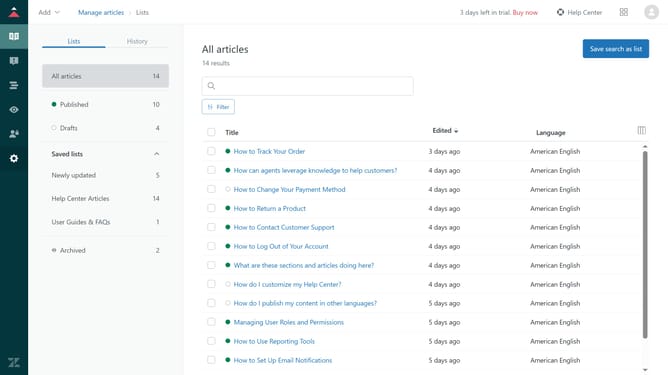
How to export a report in Zendesk Explore
Here is how to export a report in zendesk explore
- First in Zendesk Explore, click on the "Reports" icon in the left sidebar
- Then click on the report you want to export from the list
- Next click on the down arrow next to the "Save" button in the top-right corner
- Click on "Export" option from the dropdown menu
- In the export options dialog, select the desired export format (CSV, PDF, Excel, etc.)
- Click on the quality dropdown menu
- Then select your desired quality option from the dropdown list
- Finally click the "Export" button to download the report
- The export process will start, and the file will download once ready
Why should you export a report in Zendesk Explore
Zendesk is a customer service platform designed to improve customer relationships and streamline support operations.
In Zendesk Explore, exporting a report allows users to share valuable insights and analytics effortlessly. This feature is essential for crafting informed decisions and tracking performance.
Exporting reports provides a seamless way to communicate findings with teams or stakeholders, ensuring everyone has access to critical data. By doing so, Zendesk Explore empowers businesses to maximize their efficiency and drive success through data-driven strategies.
Last update