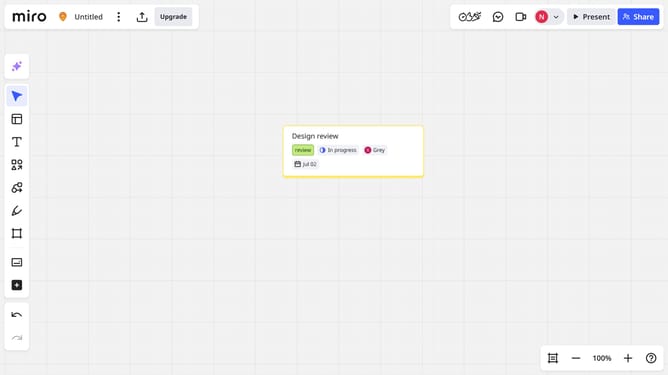
How to enable or disable undo/redo controls in Miro
Here is how to enable or disable undo/redo controls in miro
- First open your board and click on the "More options" menu (three dots) in the top header bar
- Click on "View" option in the dropdown menu
- Then, locate the "Undo/Redo controls" option in the View submenu
- Finally toggle the switch on or off to enable or disable the undo/redo controls
Why should you enable or disable undo/redo controls in Miro
Miro is an innovative online collaborative whiteboard platform designed to enhance team creativity and synergy.
Enabling or disabling the undo/redo controls in Miro can significantly streamline your workflow. These features allow you to quickly rectify mistakes or revisit previous ideas, offering real-time flexibility in dynamic brainstorming sessions.
Having control over these features boosts productivity by reducing the pressure of committing to irreversible changes. It creates a safety net, empowering users to experiment freely, leading to more innovative and effective collaborations.
Last update