How to delete a layer in a diagram in a Miro board
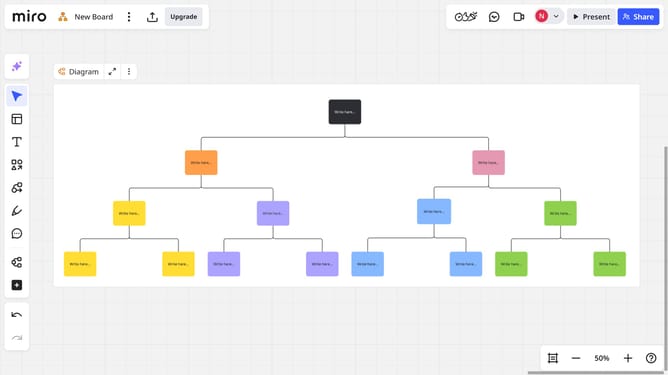
Here is how to delete a layer in a diagram in a miro board
- First locate the diagram and click on the "Focus mode" in the toolbar
- Next click on the "Layers" button in the top-right corner
- In the layers panel, locate the layer you want to delete
- Then click on the options menu (three dots) next to it
- Finally click on "Delete layer" option in the dropdown menu
Why should you delete a layer in a diagram in a Miro board
Miro is a versatile digital collaboration platform designed to enhance team creativity and productivity.
Deleting a layer in a diagram within a Miro board is a feature that streamlines the editing process, allowing for more efficient organization of visual content. This capability ensures that users can effortlessly maintain clarity in their collaborative projects.
Removing unnecessary layers helps focus on relevant information, enhancing both the visual appeal and comprehensibility of the board. It ensures that team members can concentrate on the most crucial elements, improving overall project coherence.
Last update