How to create and edit connection lines on Miro
Here is how to create and edit connection lines on miro
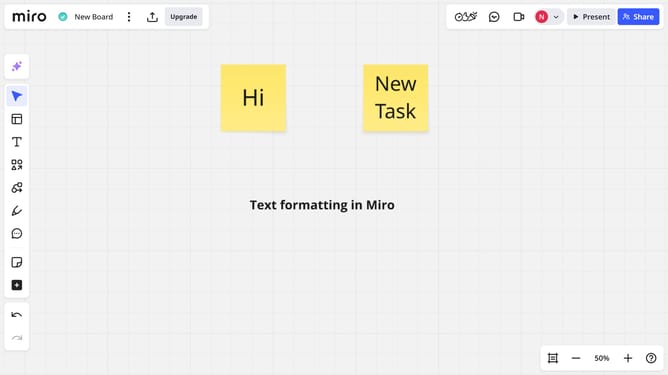
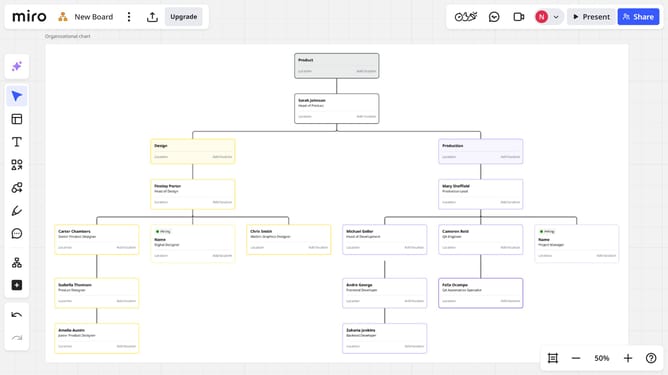
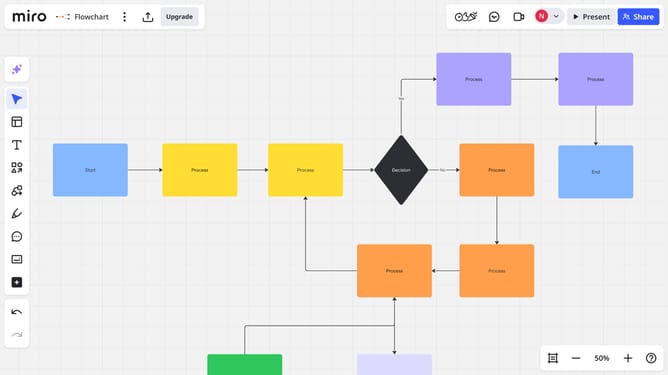
- First open your Miro board and find the object you want to add a connection
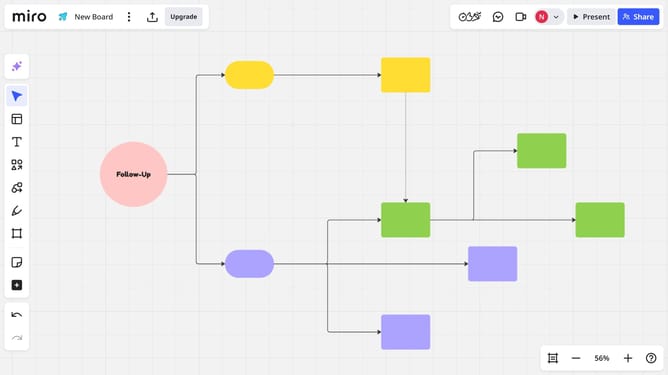
- Then, select the object and click on one of the blue dots around it to start drawing a line
- Click and drag the line to the other object you want to connect
- To edit the connection line use the toolbar
- Click on the "Type" button in the top toolbar
- Select the type you want from different styles option
- And adjust the thickness of your line as needed
- Click on the color tool
- Select your desired color from the color palette
- For more customization, click on the "More options" (three dots)
- You've succesfully created and customized your connection line
Why should you create and edit connection lines on Miro
Miro is an innovative collaborative platform designed to simplify teamwork and enhance creativity through an intuitive digital whiteboard.
One of its standout features is the ability to create and edit connection lines, allowing users to effortlessly link ideas and concepts on their boards. This functionality drives clarity and structure, ensuring that brainstorming sessions and project maps are not just visually appealing but also comprehensible and strategically aligned.
By utilizing connection lines, teams can easily visualize workflows, processes, and relationships. This not only aids in better communication but also boosts productivity and collaboration efficiency.
Last update