How to change the corner style of a shape in a Miro board
Here is how to change the corner style of a shape in a miro board
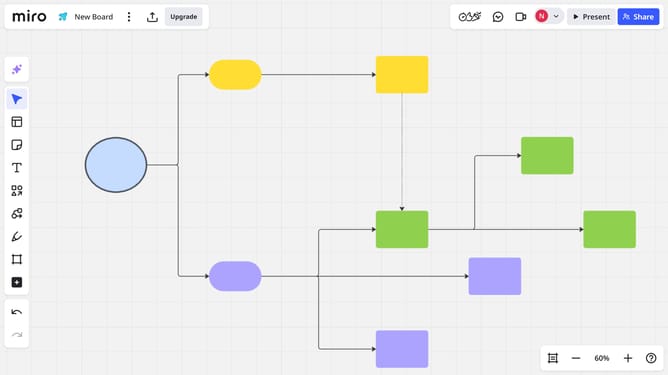
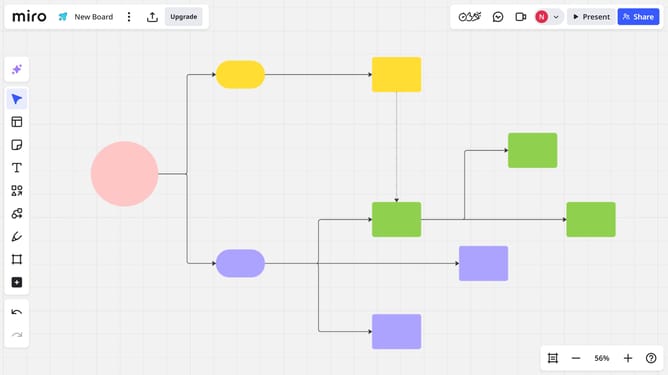
- First select the shape you want to edit by clicking on it (typically a rectangle or square)
- Next click on the "Border Style" button in the formatting toolbar
- In the style panel, locate the "Rounded corners" option
- Then, click into the input field and enter a specific value
- Alternatively, you can use the slider to adjust the corner rounding to your desired level
Why should you change the corner style of a shape in a Miro board
Miro is a versatile online collaboration platform that empowers teams to brainstorm, create, and innovate seamlessly.
The ability to change the corner style of a shape in a Miro board is a simple yet powerful feature that enhances visual communication.
By customizing shape corners, you can make diagrams and charts more appealing and easier to understand. This feature allows users to differentiate between elements, improving clarity and focus in presentations and collaborative efforts.
Ultimately, it helps in creating a more aesthetically pleasing and effective visual workspace.
Last update