How to enable custom fields with external data in Trello
Here is how to enable custom fields with external data in trello
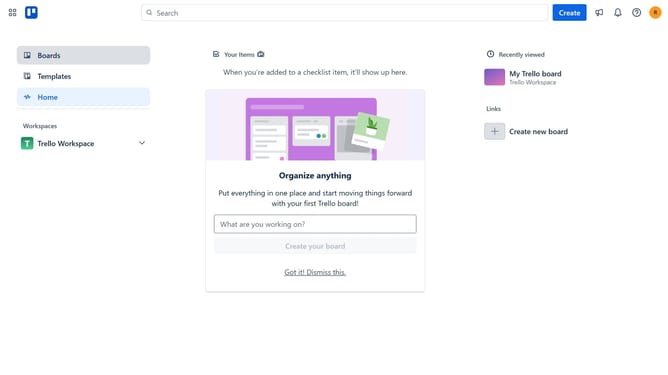
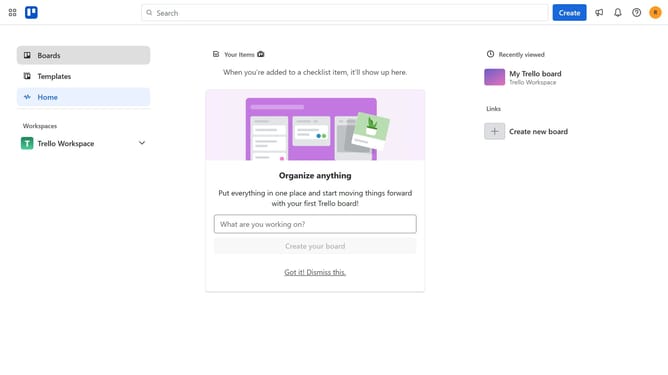
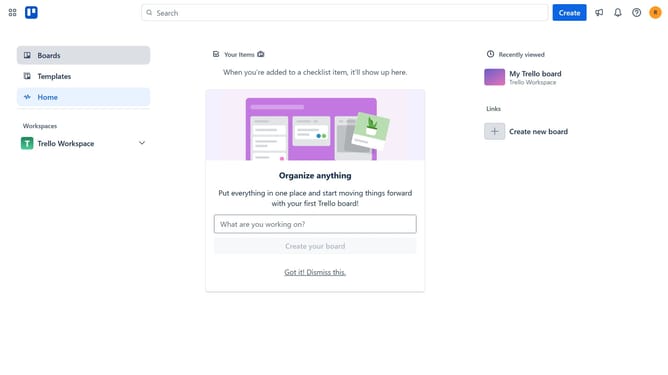
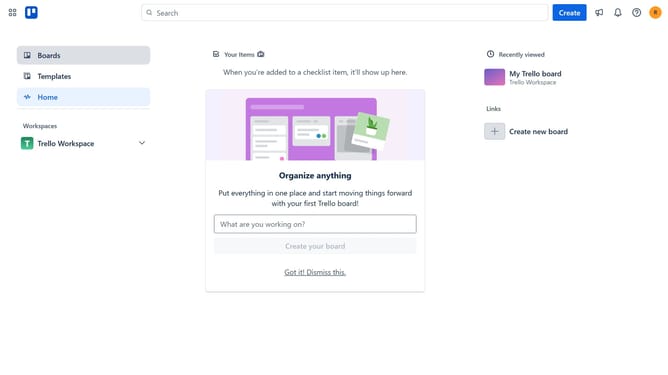
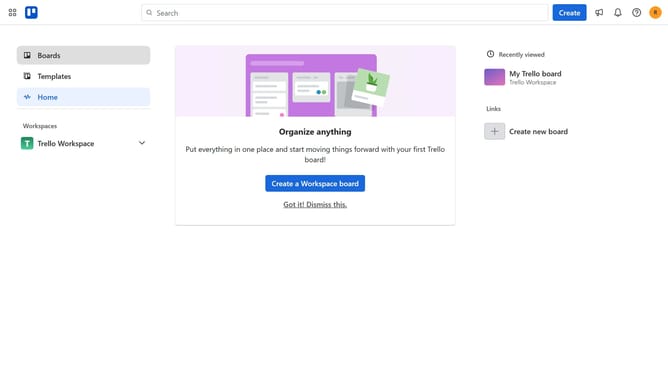
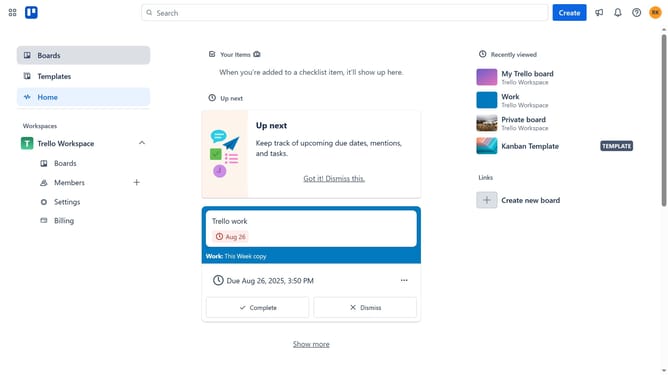
- First click on the "Boards" option in the left sidebar
- Then click on the "Work" board tile in the workspace section
- Click on the three dots menu ("...") in the top-right corner of the board
- Select "Power-Ups" from the dropdown menu
- Click into the search field at the top of the Power-Ups panel
- Type "custom fields with external data" in the search box
- Click on the "Custom Fields With External Data" power-up from the search results
- Click "Add" button under the Custom Fields With External Data
- Finally, click the "Add" button in the bottom-right corner to install the power-up
Why should you enable custom fields with external data in Trello
Trello is a versatile project management tool designed to streamline collaboration and increase productivity.
Enabling custom fields with external data in Trello allows users to tailor their boards to display essential information from other systems, creating a more integrated workflow.
This feature simplifies tracking and reporting by bringing critical data, like sales figures or customer information, directly into Trello cards.
With custom fields linked to external sources, teams gain a comprehensive view of their projects, facilitating informed decision-making and enhancing efficiency.
Last update