How to embed a Figma prototype in Google Slides?
Here is how to embed a figma prototype in google slides
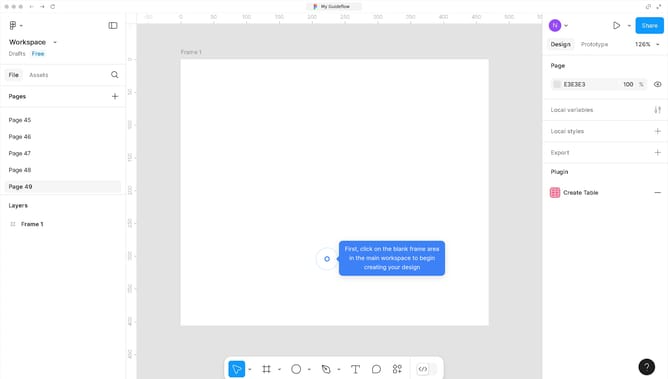
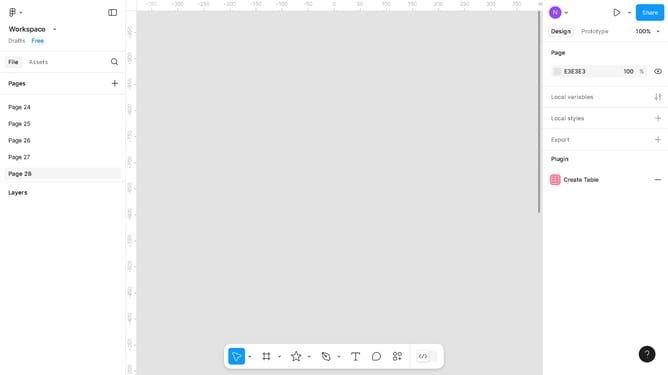
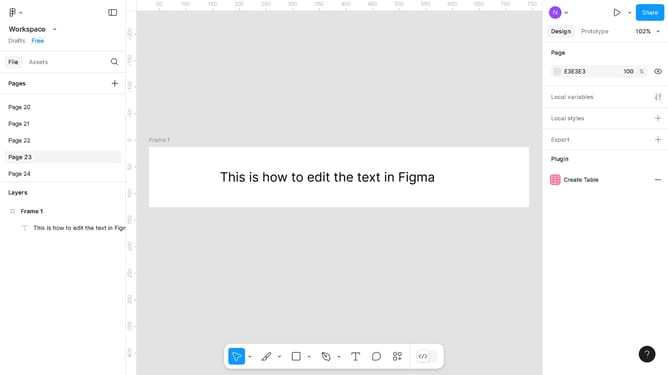
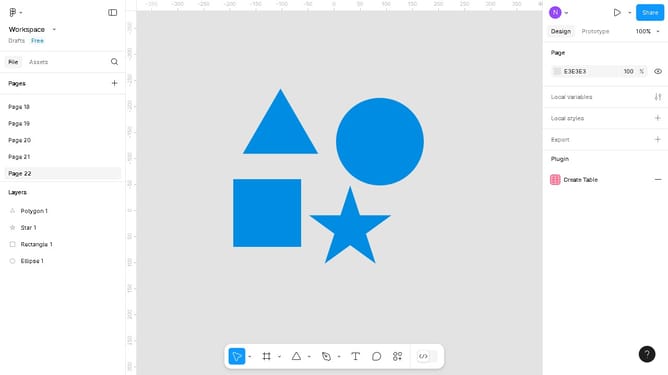
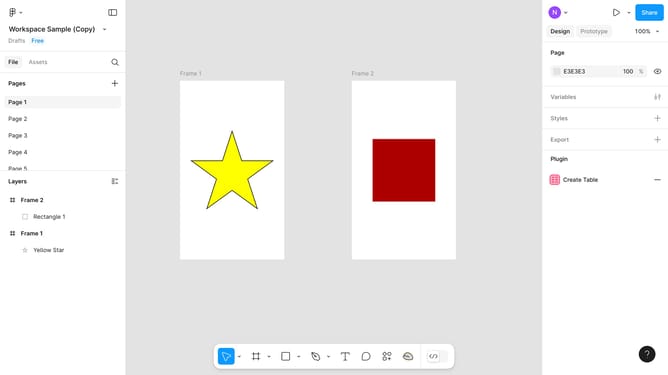
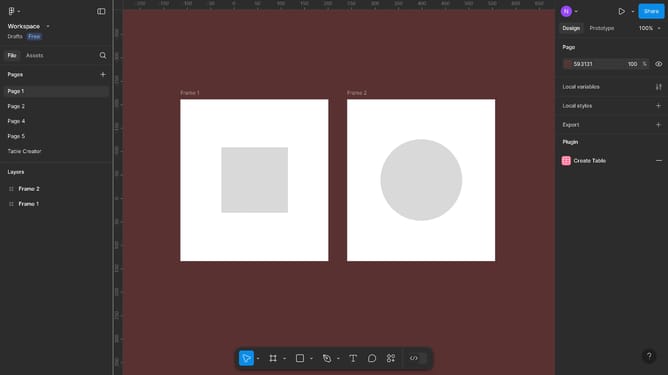
- First, right-click on the page you want to link in the left sidebar
- Then click on the "Copy link to page" option in the context menu
- Next, click on the image in the Google slide canvas
- Then click on the "Link" icon in the top toolbar
- Next click on the input field and insert the URL link of the page to embed
- Then click the "Apply" button to insert the link
- After that, click on the "Slideshow" dropdown in the top toolbar
- Finally click on the preview image to redirect you to the page you embedded
Why should you embed a Figma prototype in Google Slides?
Figma is a collaborative web application for interface design, enabling teams to create, share, and iterate on designs seamlessly. Embedding a Figma prototype in Google Slides enhances your presentations by bringing dynamic, interactive visual stories to life. This integration allows you to showcase your design work directly within your slide deck, providing audiences with a more engaging and comprehensive view of your project's vision.
Using this feature, you can present real-time design updates, ensuring that your stakeholders and clients are always viewing the most current version of your work. It streamlines communication and helps in gaining valuable feedback, facilitating a more efficient design process. By embedding interactive elements, you maintain viewer interest and effectively convey complex design concepts without leaving the familiar interface of Google Slides.