How to edit ticket card appearance in HubSpot
Here is how to edit ticket card appearance in hubspot
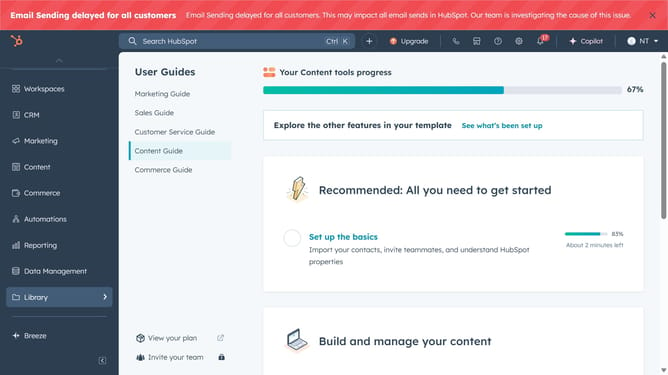
- First click the "Workspaces" icon in the left sidebar
- Then click on "Help Desk" option in the workspace dropdown menu
- Next click on "Board options" button in the top-right corner of the board view
- Select "Edit cards" option from the dropdown menu
- In the "Edit board view" modal window, cards, select an option, either "Default" or "Compact" to update the style of board
- To show priority and associated icons, check "Display priority and associated records" To show tags, check "Display tags"
- Next to show the ticket next and last activity information, toggle the "Ticket activity information" switch on
- Toggle “Inactive cards” to show inactive tickets. Set how long before a ticket is marked inactive
- Finally click the "Save" button to apply the changes
Why should you edit ticket card appearance in HubSpot
HubSpot is a dynamic platform crafted to enhance your business's marketing, sales, and customer service through intuitive tools and workflows.
Editing the ticket card appearance in HubSpot allows you to customize how your support tickets are visually presented within the platform.
This feature enhances your team's ability to prioritize, track, and manage customer issues efficiently by displaying the most relevant details prominently.
Customizing the ticket card appearance provides a tailored view that aligns with your workflow needs, fostering a streamlined and productive support process.
Last update