How to deliver self signed email notifications as a PDF in a permission profile in DocuSign
Here is how to deliver self signed email notifications as a pdf in a permission profile in docusign
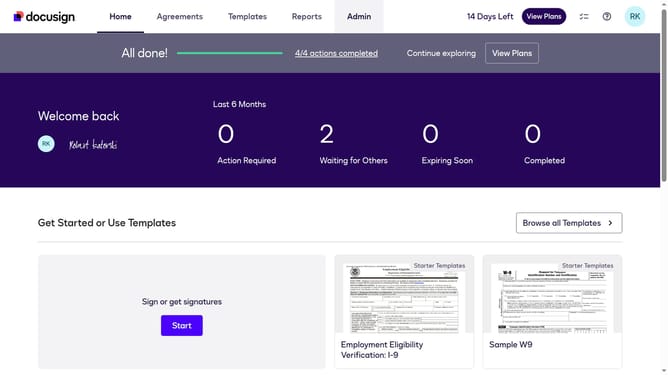
- First click on the "Admin" link in the top navigation menu
- Then scroll down the page to view the "USERS AND GROUPS" section in the left sidebar
- Next click on the "Permission Profiles" link in the left sidebar under "USERS AND GROUPS"
- Then click on the "Actions" dropdown button next to a permission profile
- Next click on the "Edit" option from the dropdown menu
- Then scroll down the "Edit Permission Profile" dialog box to view more options
- Next click on the "Deliver self-signed email notifications by" dropdown menu and select "PDF" option
- Finally click on the "Save" button to save the changes to the permission profile
Why should you deliver self signed email notifications as a PDF in a permission profile in DocuSign
DocuSign simplifies the digital signing process, enabling seamless and secure electronic agreements.
Delivering self-signed email notifications as a PDF within a permission profile in DocuSign offers a streamlined approach to manage and archive communications. This feature enhances organizational control, ensuring that all parties have access to easily retrievable documentation.
Leveraging this capability not only bolsters legal compliance but also minimizes the risk of lost or overlooked emails, supporting efficient workflows and improved record-keeping.
Last update