How to delete columns from a grid in Webflow
Here is how to delete columns from a grid in webflow
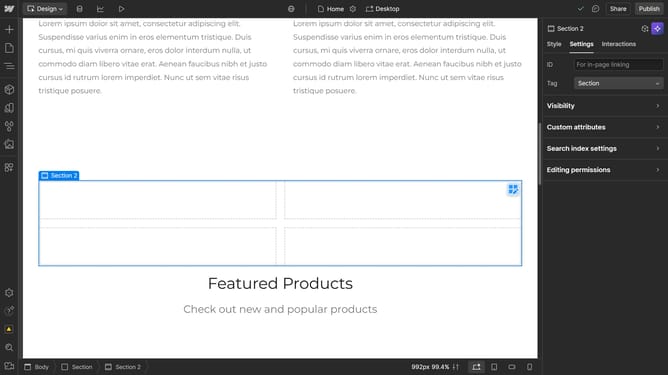
- First, click on the element with the grid layout applied
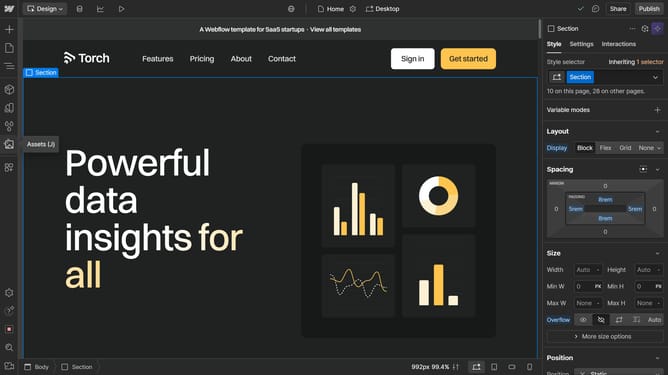
- Click the "Style" tab in the right sidebar panel
- Click the "Layout" section in the right sidebar settings panel
- Click the "Configure grid" button next to the Grid settings in the Layout panel
- Click the "Delete" button (trash icon) in the Columns section of the Grid settings
Why should you delete columns from a grid in Webflow
Webflow is an innovative platform that empowers you to design, build, and launch responsive websites without writing code.
Effortlessly deleting columns from a grid in Webflow allows for more streamlined and customizable design layouts. This feature enables you to adjust your grid structure, offering flexibility and precision in your design process.
Utilizing this capability can enhance your website’s aesthetic and functional appeal by creating a user-friendly and dynamic layout, tailored to your specific design needs.
Last update