How to delete an area from a grid in Webflow
Here is how to delete an area from a grid in webflow
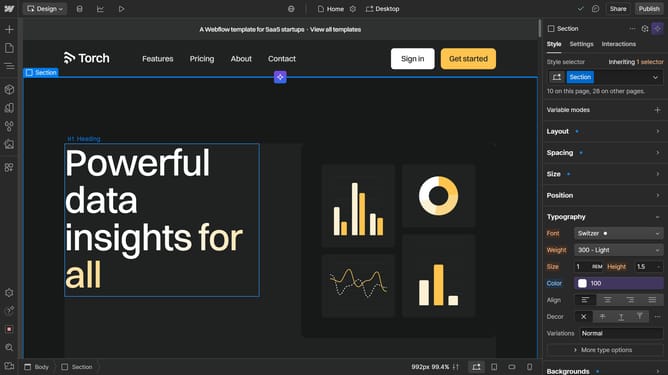
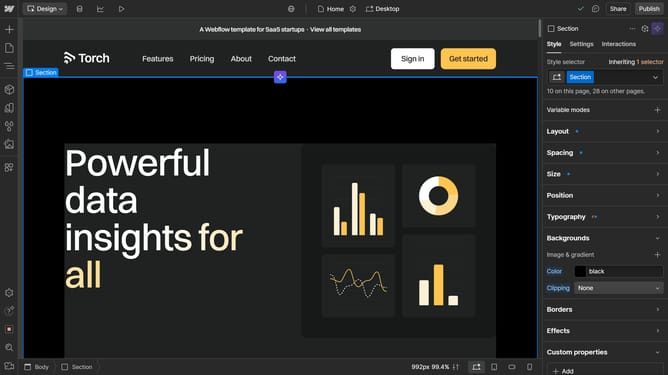
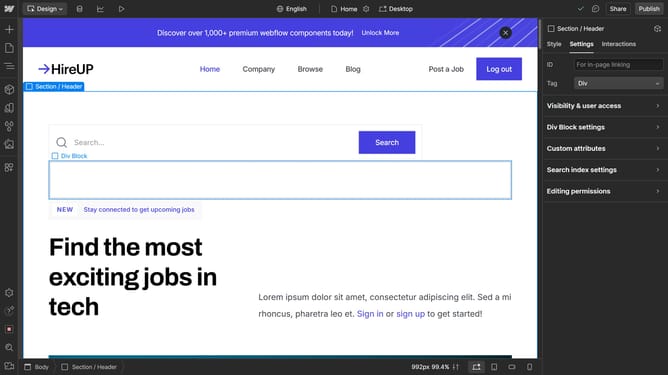
- First click the element with the grid layout to start editing
- Then click on the "Style" tab in the right sidebar panel
- Next click on the "Layout" option in the style settings panel
- Then click on the "Configure grid" button in the Layout settings
- Finally click the "Remove" button for "the area in the grid settings dialog
Why should you delete an area from a grid in Webflow
Webflow is a powerful platform that allows users to design, build, and launch responsive websites visually.
One of the handy features within Webflow is the ability to delete an area from a grid effortlessly. This function helps streamline the design process by providing flexibility in adjusting layouts without the need for complex coding. It keeps your grid neat, ensuring your content is organized the way you envision it.
This feature is especially beneficial for optimizing web pages, enhancing user experience, and maintaining design consistency. By easily removing grid areas, designers can focus on what truly matters – delivering impactful and visually appealing websites.
Last update