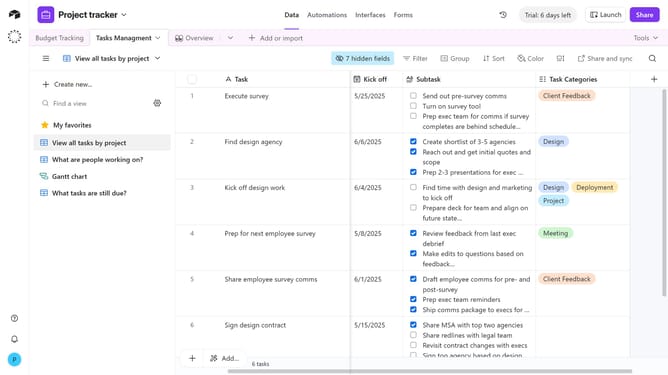
How to customize the appearance of a base in Airtable
Here is how to customize the appearance of a base in airtable
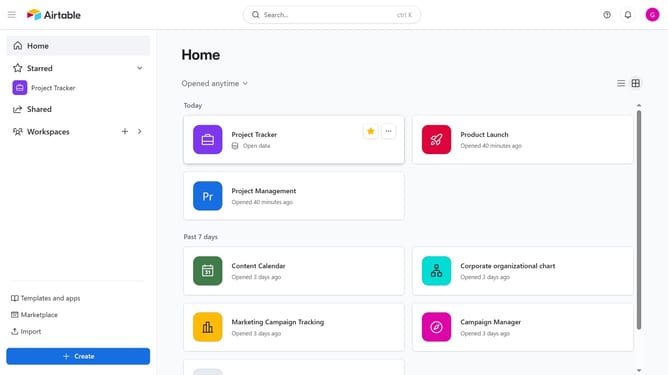
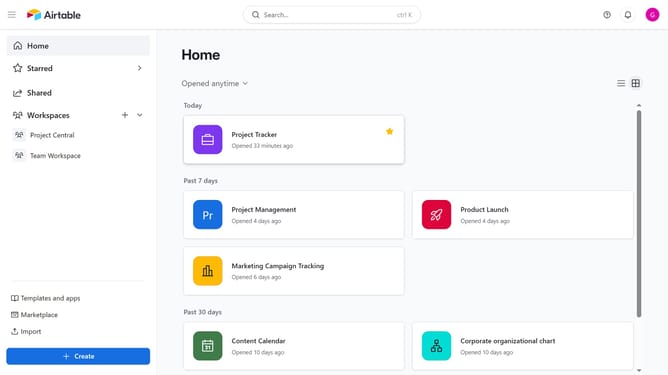
- First, navigate to your Airtable home screen
- Next, find the base you want to customize
- Hover over the base name and click on the menu icon (three dots)in the top right corner
- Then select "Customize appearance" from the dropdown menu
- In the Edit appearance dialog, you can change the base color
- Next, to change the base icon, click the "Icon" tab
- Then pick an icon that represents the base or its content
Why should you customize the appearance of a base in Airtable
Airtable is a versatile platform that combines the power of a database with the familiarity of a spreadsheet, enabling users to organize anything efficiently.
Customizing the appearance of a base in Airtable allows users to tailor their workspace to enhance both functionality and aesthetic appeal. With options to adjust colors, layouts, and field types, users can create a visually engaging environment that aligns with their workflow needs.
This personalization not only makes data more accessible and comprehensible but also increases productivity by providing a tailored user experience.
Last update