How to customize color of card in chatbot in Zapier
Here is how to customize color of card in chatbot in zapier
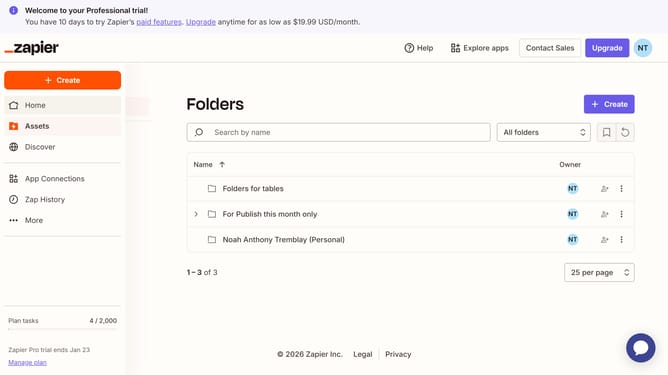
- First click on "Assets" in the left sidebar navigation menu
- Then click on "Chatbots" in the left sidebar under the Assets section
- Then click on the chatbot title that you like to manage from the list
- Then click on "Theme" in the left sidebar under the Build section
- Then scroll the page down to the app style section
- Then click on the "Advanced color settings" dropdown button
- Click on the card color section to open the color selection
- Next select a color from the color picker for the Card background
- Then click on the "Card foreground" color field in the Cards and containers section
- Next select a color from the color picker for the Card foreground text
- Finally click on the "Save changes" button at the bottom of the Theme settings panel
Why should you customize color of card in chatbot in Zapier
Zapier is a dynamic automation platform that seamlessly connects your apps to streamline workflows.
Customizing the color of a card in your chatbot on Zapier adds a personal touch and enhances user engagement. This feature allows you to align the visual aspects of your chatbot with your brand's color scheme, promoting a consistent brand identity.
By making your chatbot visually appealing, you can improve user experience and foster a stronger connection with your audience. Tailor your chatbot effortlessly to reflect the personality and ethos of your brand, ensuring a cohesive interaction every time.
Last update