How to create radio button block on a survey in Mailchimp
Here is how to create radio button block on a survey in mailchimp
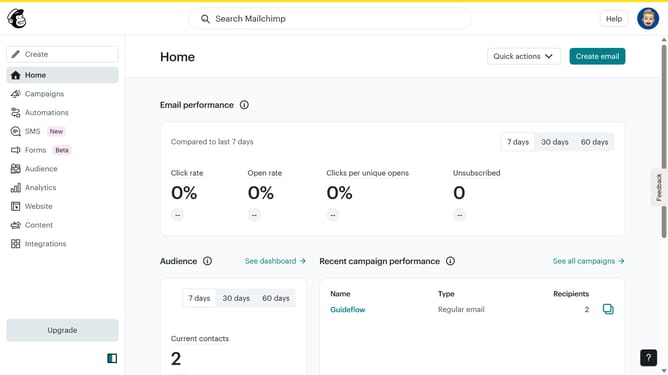
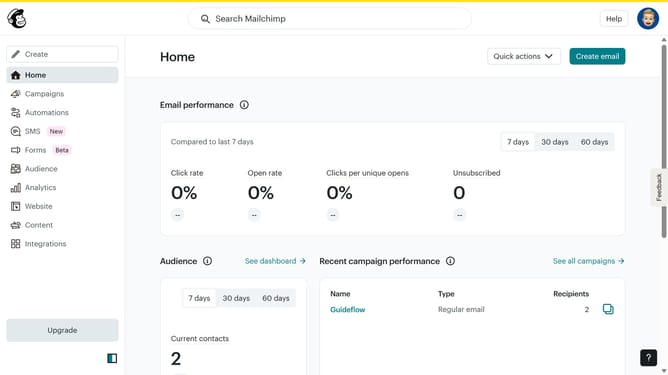
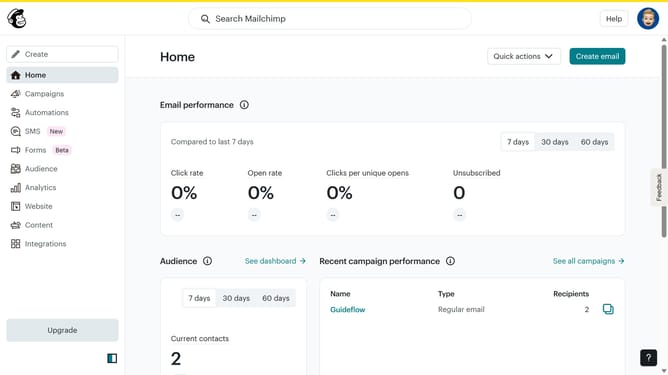
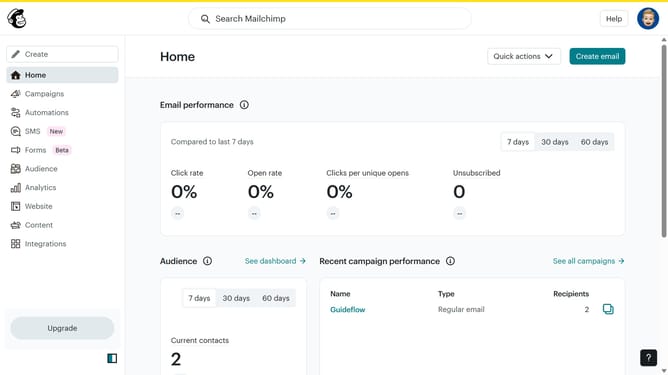
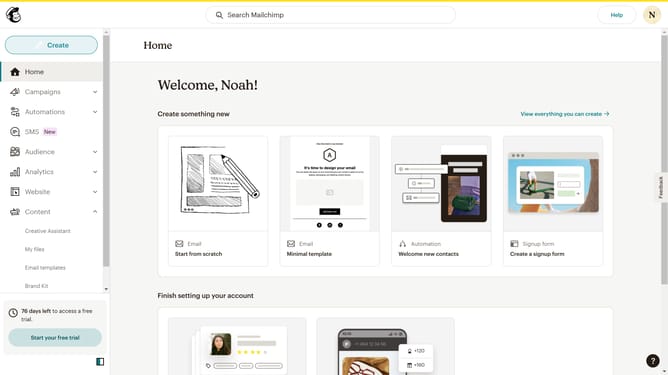
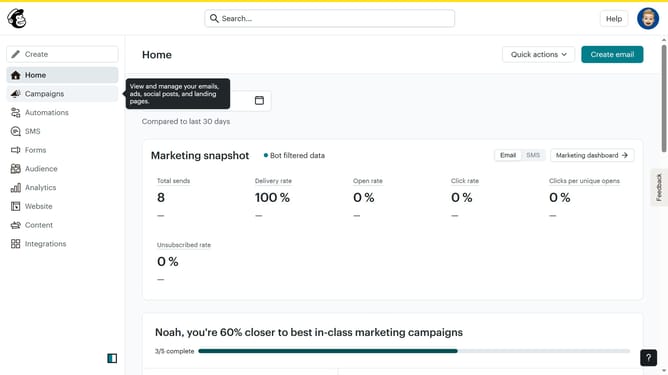
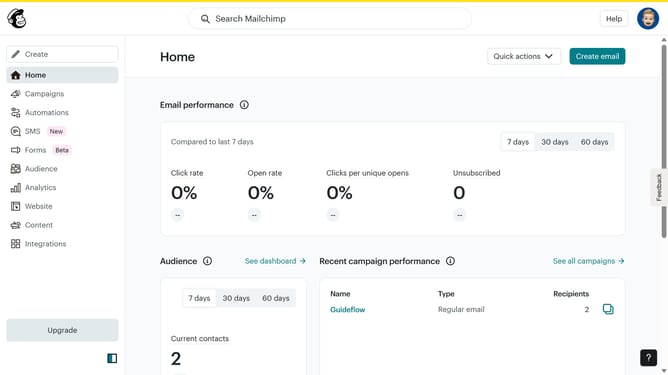
- First click on "Audience" in the left sidebar
- Then click on "Surveys" under Audience in the left sidebar
- Next click on the "Create new survey" button
- Then click on the "Survey name" input field and enter your survey title
- Next click on the "Begin" button
- Then click on the plus icon to add a question
- Then select "Radio buttons" from the list of question types
- Next click on the "Your question text goes here..." input field and enter your question
- Then enter your first option in the "Option 1" input field
- Next click on the plus icon to add a new option
- Then click on the "Option 2" input field and type your second option
- Next click on the "Continue to design" button
- Then click on the "Review" button
- Finally click on the "Continue" button
Why should you create radio button block on a survey in Mailchimp
Mailchimp is a leading marketing automation platform designed to empower businesses with seamless communication tools.
Within its robust suite of features, creating a radio button block on a survey stands out for its simplicity and utility. The radio button block allows you to present multiple-choice questions in a clear, organized manner.
Using this feature enhances your survey design by ensuring respondents can easily select from predefined options, leading to improved response accuracy and data consistency.
Ultimately, it facilitates efficient data collection, crucial for informed decision-making in your marketing strategies.
Last update