How to insert an image block in an email in Mailchimp
Here is how to insert an image block in an email in mailchimp
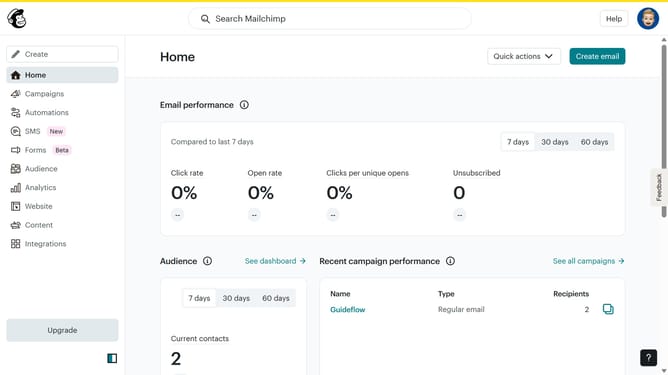
- First click on the "Campaigns" menu item in the left sidebar
- Then click on the "Edit" button next to the Testing Email campaign
- Next click on the "Edit design" button in the email preview panel
- Next click on the "Image" block in the left sidebar to add a new image to your email
- Then click the "Add" dropdown button in the image settings panel
- Next click on "Upload Image" option from the dropdown menu
- Finally adjust the image size by dragging the slider in the size settings panel to your desired percentage
Why should you insert an image block in an email in Mailchimp
Mailchimp is a powerful marketing platform designed to simplify email marketing efforts.
Inserting an image block into an email in Mailchimp enhances visual appeal, making your messages more engaging and effective. This feature enables users to effortlessly incorporate vibrant visuals that support content, capture attention, and drive interaction.
Using image blocks not only enriches the aesthetic quality of emails but also aids in conveying messages more clearly. This makes communications more memorable, encouraging recipient interaction and boosting brand awareness.
Last update