How to create your pinterest social card in Mailchimp
Here is how to create your pinterest social card in mailchimp
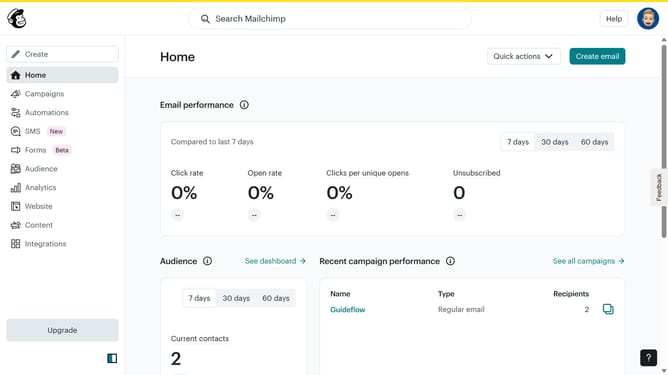
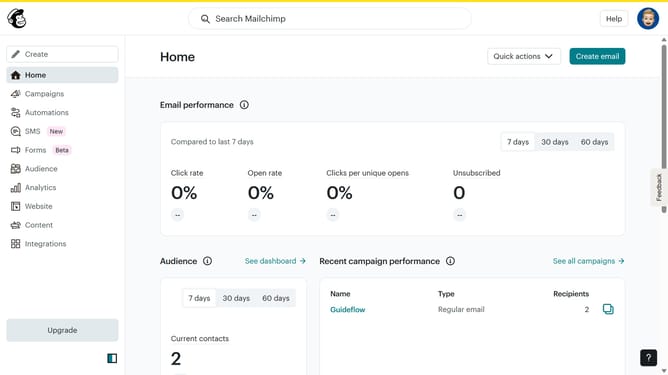
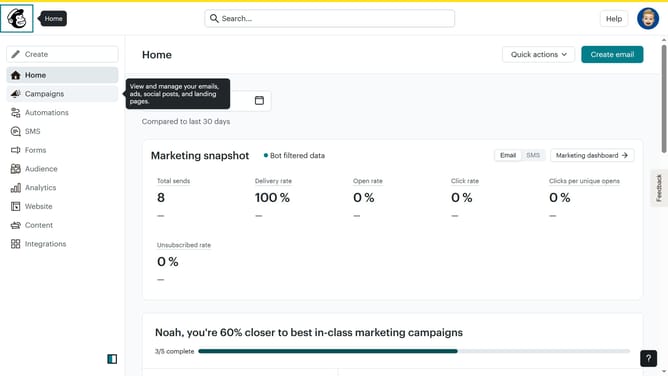
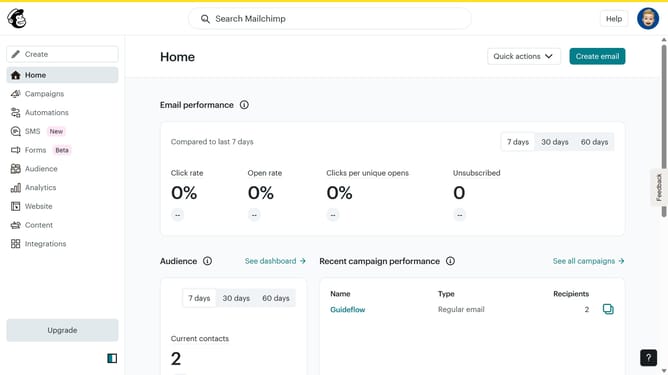
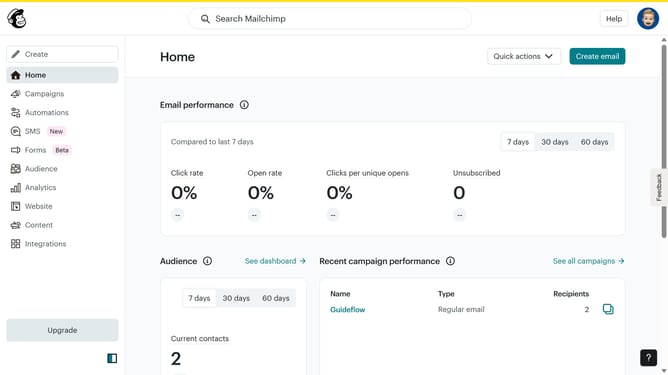
- First click on the "Campaigns" item in the left sidebar menu
- Then click on "Plain Text Email" in the campaigns list
- Click on "Preview and Test" dropdown button in the top navigation bar
- Select "Social Cards" option from the preview dropdown menu
- Click on "Pinterest" tab in the social cards preview window
- Click "Upload an image" link in the Featured Image section
- Select the app icon image from the Content Studio library
- Click the "Move To" button in the top toolbar
- Click and enter the Title of your social account in the input text field
- Click and type the description of your image in the description text field
- Finally, click the "Save & Close" button to save the social card settings
Why should you create your pinterest social card in Mailchimp
Mailchimp is a versatile platform designed to streamline your email marketing campaigns and enhance your brand's online presence.
Creating a Pinterest social card in Mailchimp allows you to seamlessly integrate and preview your content for effective cross-platform engagement. By crafting an eye-catching visual, you can captivate your audience and drive traffic directly to your Pinterest boards.
This feature is especially beneficial for brands seeking to boost their Pinterest engagement effortlessly, as it combines Mailchimp's core strengths in email marketing with effective social media integration strategies.
Last update