How to create a ticket trigger in Zendesk
Here is how to create a ticket trigger in zendesk
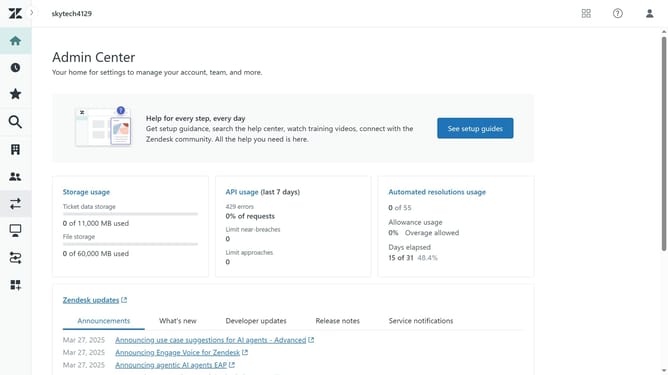
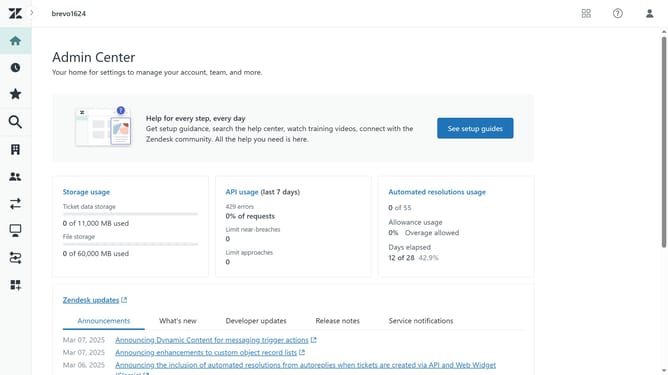
- First in Admin Center, click on "Objects and rules" in the left sidebar
- Then click on "Triggers" under Business rules
- Click on the "Ticket" tab in the triggers section
- Next click the "Create trigger" button in the top-right corner
- Enter the trigger name in the "Trigger name" field
- Enter a brief description of the trigger
- Click on the "Trigger category" dropdown menu and select a category for your trigger or create a new one
- Click "Add condition" to set up the trigger to meet All or Any conditions
- Click the "Add action" to set the actions that occur when trigger conditions are met
- Finally, click the "Create trigger" button at the bottom to save the new trigger
Why should you create a ticket trigger in Zendesk
Zendesk is a comprehensive customer service platform designed to facilitate seamless communication and support.
Creating a ticket trigger in Zendesk empowers organizations to automate their workflow by defining specific conditions and actions within tickets.
This feature not only increases efficiency by ensuring timely and consistent responses but also allows agents to focus on resolving issues rather than managing administrative tasks.
By streamlining processes, ticket triggers enhance customer satisfaction and improve team productivity.
Last update