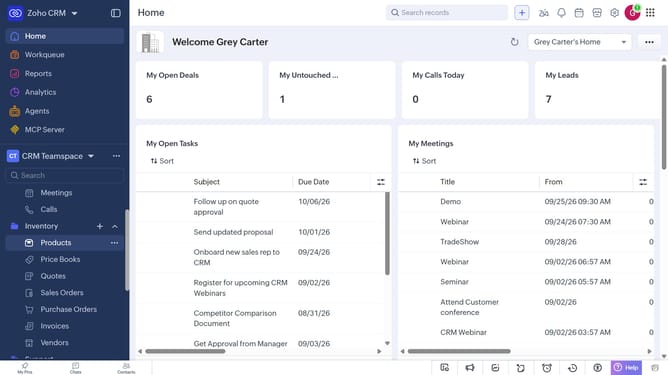
How to create a group on Zoho CRM
Here is how to create a group on zoho crm
- First click on the settings icon in the top menu
- Click on "Users" under the "General" section
- Next, click on the "Groups" tab
- Then click on the "Create Group" button
- Next, enter the group name in the "Group Name" field
- If needed, enter a description in the "Description" field
- Then, click on the "Next" button
- Then select the checkbox next to each user you want to add to the group
- Finally click on the "Save" button
Why should you How to create a group on Zoho CRM
Zoho is a powerful suite of online productivity tools designed to enhance business efficiency and collaboration.
Creating a group on Zoho CRM streamlines communication and organization by bringing team members together under a shared platform. This feature empowers teams to collaborate seamlessly, ensuring everyone has access to necessary information and tools.
By organizing users into groups, businesses can tailor permissions, facilitate focused discussions, and boost productivity. It’s an effective way to enhance team cohesion and streamline workflow.
Last update