How to create a custom style in Claude.ai
Here is how to create a custom style in claude.ai
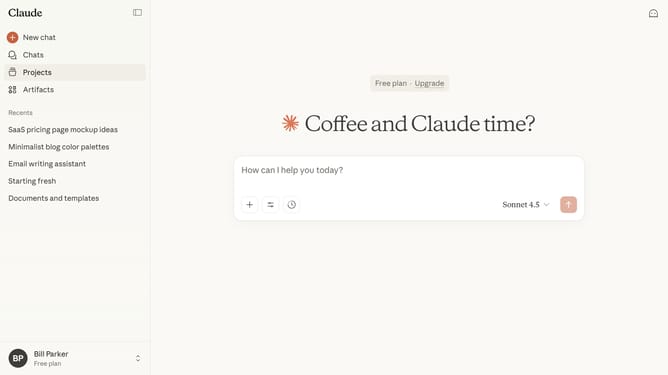
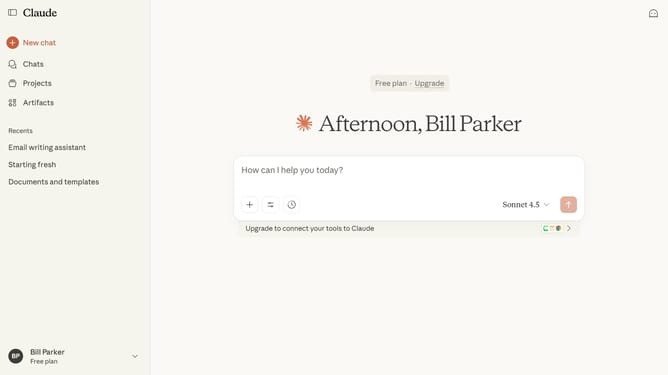
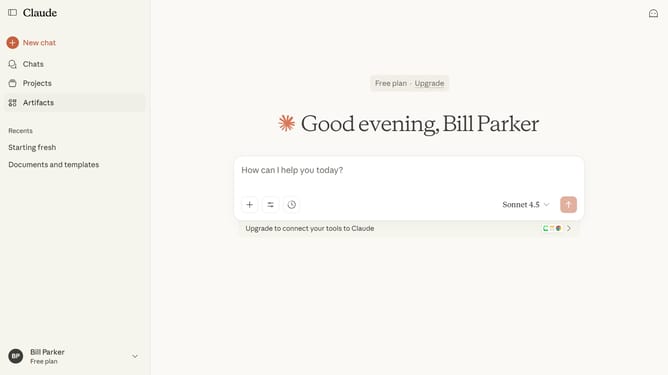
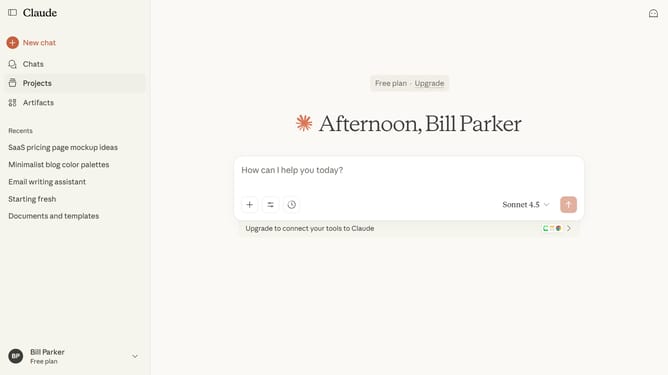
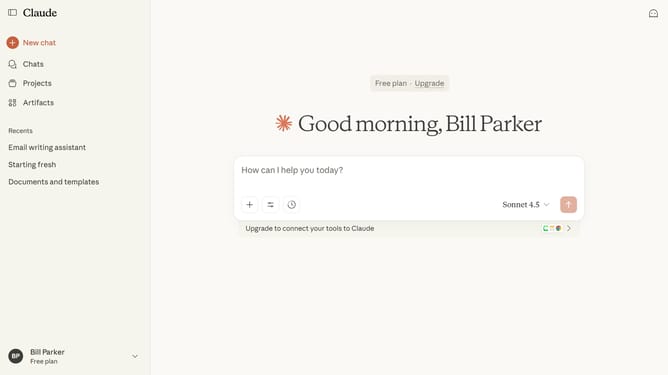
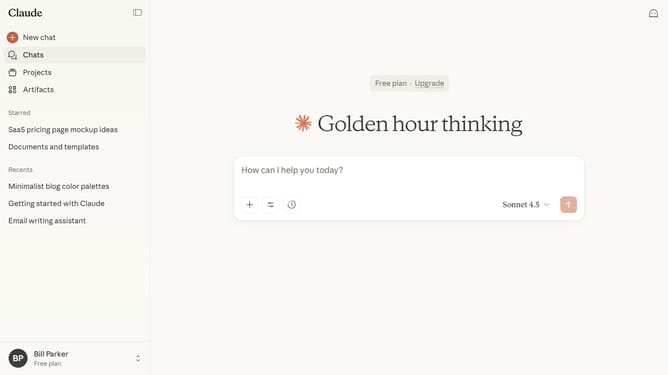
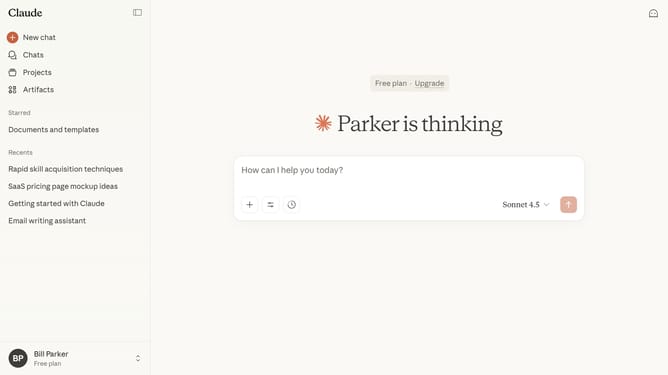
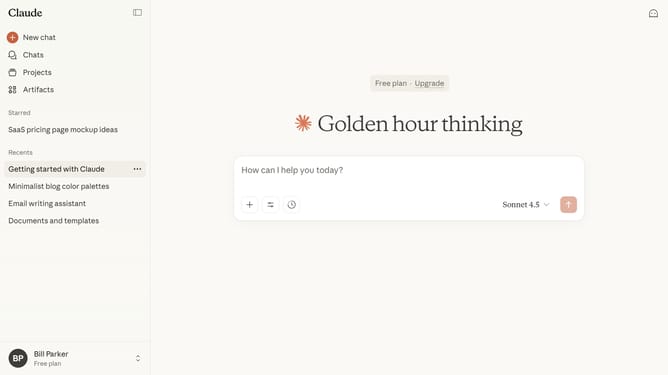
- First start a new chat or open an existing chat
- Next click on the "Search and tools" button below the input field
- Click on the "Use style" option in the dropdown menu
- Then click on the "Create & edit styles" button at the bottom of the styles menu
- Click on the "Create custom style" button in the customize styles dialog
- You can choose the “Add Writing Example” option
- Then you can either upload a document from your device or paste text directly
- Alternatively, you can choose "Describe style instead"
- Select a starting point that best matches your goal in the style description options
- Click “Use custom instructions (advanced)” to write your own exact style rules
- Then click in the custom instructions text area and enter the style instructions
- Finally click on the "Create style" button to create the custom style
- Your custom style has been successfully created using your description and instructions
Why should you create a custom style in Claude.ai
Claude is an advanced AI platform designed to enhance creative processes and personalized digital experiences.
Creating a custom style in Claude.ai empowers you to personalize content outputs, matching them to your unique brand voice. This feature enables seamless integration of your specific tone and style into every output.
Using custom styles ensures consistency and makes content more relatable to your audience. It grants control over how messages are crafted, enhancing engagement and effectiveness in communication.
Embrace the ability to tailor content effortlessly, ensuring relevance and impactful interactions.
Last update