How to create a checkbox block on a survey in Mailchimp
Here is how to create a checkbox block on a survey in mailchimp
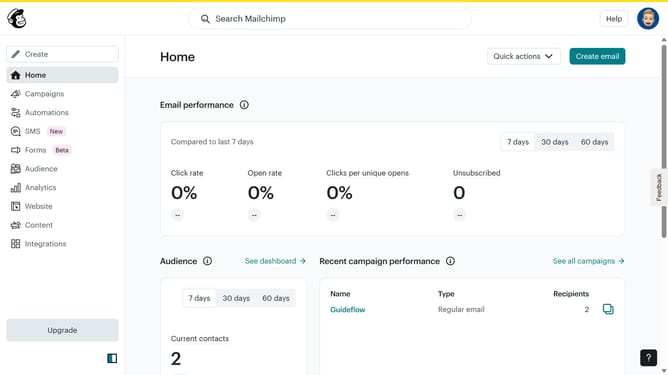
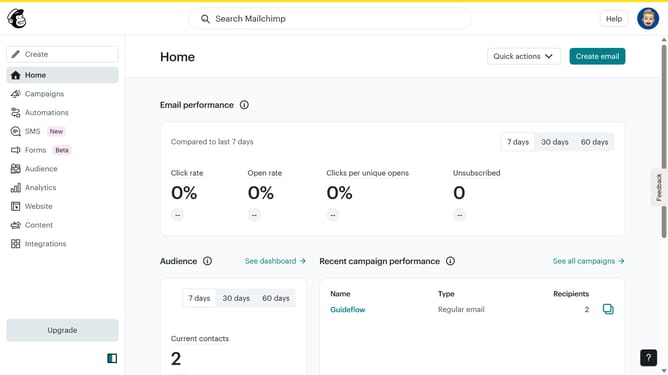
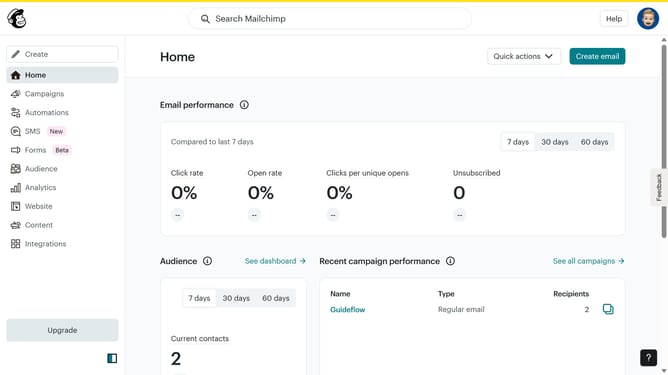
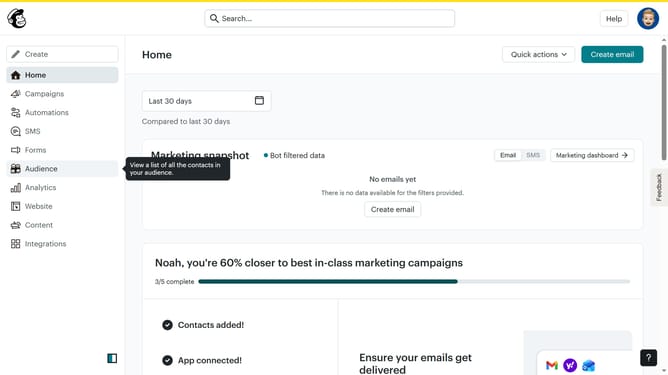
- First click on "Audience" in the left sidebar
- Then click on "Surveys" from the Audience dropdown
- Next click on the "Create new survey" button
- Then click on the "Survey name" input field and type a name for your survey
- Next click on the "Begin" button
- Then click on the "+" button to add a question
- Then select "Checkboxes" as the question type
- Then click on the "Your question text goes here..." input field to add your question
- Then click on the "Option 1" input field to edit the first option
- Then click the "+" button to add another option
- Then click on the "Option 2" input field to edit the second option
- Then click on the "Continue to design" button
- Then click on the "Review" button
- Finally click on the "Continue" button
Why should you create a checkbox block on a survey in Mailchimp
Mailchimp is a versatile platform designed to streamline email marketing and customer engagement.
Creating a checkbox block on a survey in Mailchimp is an intuitive feature that allows users to enhance their surveys effortlessly. This feature facilitates better data collection by allowing respondents to select multiple options simultaneously, ensuring more nuanced feedback.
Using checkbox blocks promotes user interaction and boosts response rates, making surveys more dynamic and informative.
This capability empowers users to craft more comprehensive surveys without complexity, promoting efficient decision-making based on richer datasets.
Last update