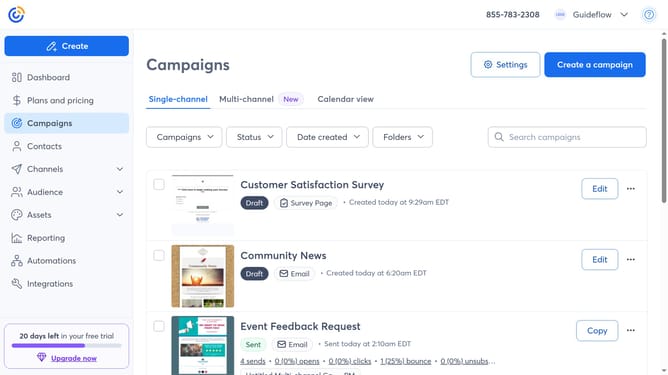
How to copy a contact list in Constant Contact
Here is how to copy a contact list in constant contact
- First click on "Audience" in the left sidebar menu
- In the expanded Audience menu, select "Lists and segments" option
- Locate the list you want to copy and click the "more options" menu (three dots) next to it
- From the dropdown menu, select the "Copy" option
- Then type the desired new name for the copied list in the "Duplicate list" dialog
- Finally click the "Save" button to complete the process
Why should you copy a contact list in Constant Contact
Constant Contact is a versatile platform designed to streamline your email marketing efforts by efficiently managing your contacts and campaigns.
Being able to copy a contact list in Constant Contact is a key feature that enhances your workflow by allowing seamless duplication of existing lists for various marketing initiatives.
This capability saves you valuable time, eliminating the need to manually recreate a list for every campaign while ensuring that your communications remain organized and targeted.
By utilizing this feature, you maintain consistency and accuracy across your marketing efforts, boosting overall productivity and campaign effectiveness.
Last update