How to change relative to in Webflow?
Here is how to change relative to in webflow
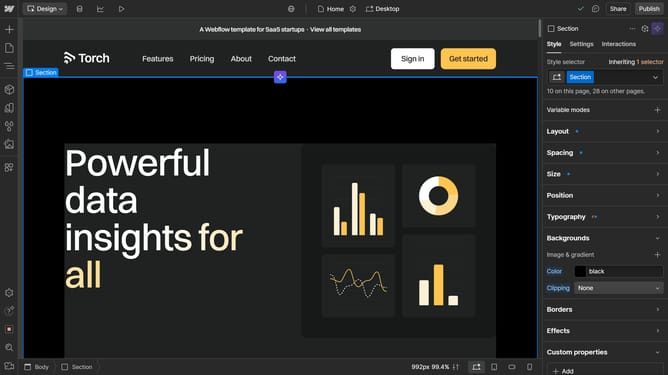
- First, choose the element, section, or div you wish to modify the property for
- In the right sidebar, find the Position section
- Scroll to the bottom of the Position section, where you'll see the "Relative to" setting. It will typically show a center marker icon with the word "Relative to"
- This crosshair icon represents the center of the parent element that the selected element is relative to
- To change the reference, update the parent element's position to Relative
- Put the parent’s position setting to Relative
- Your originally selected element will now be relative to the newly designated parent element
- To confirm this, click back on the original element
- Then hover over the Relative to setting again in the Position section
- You’ll notice that the highlighted element now points to the parent element you just set as relative, confirming the change
Why should you change relative to in Webflow?
Webflow is a powerful web design tool enabling creators to build stunning websites without writing code.
The "change relative to" feature in Webflow allows designers to adjust the positioning of elements with precision. By selecting how an element is positioned in relation to other elements or its container, it gains flexibility in responsive design.
This capability enhances user experience across various devices, ensuring that your design retains its intended impact, regardless of screen size. Transform your web projects seamlessly and deliver a polished, professional finish every time.
Last update