How to change column font color in a free email campaign in Mailchimp
Here is how to change column font color in a free email campaign in mailchimp
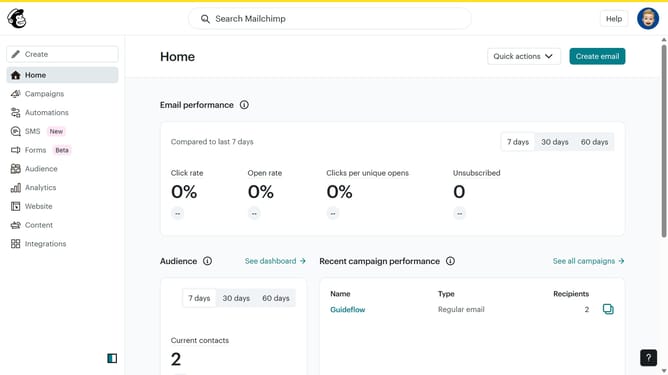
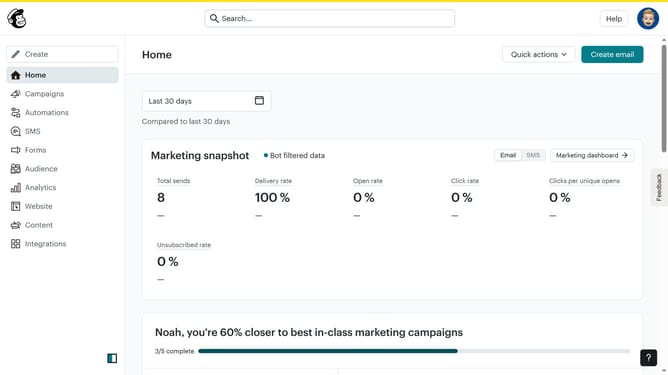
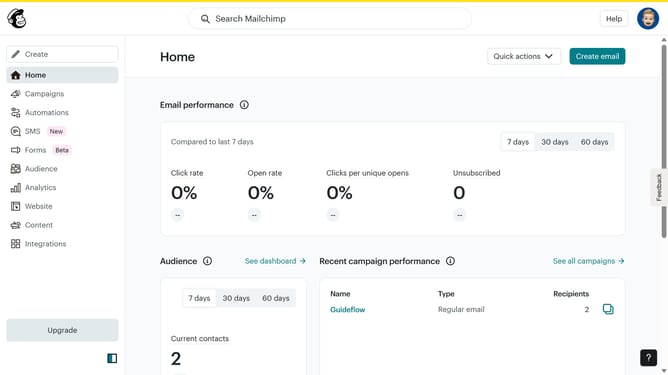
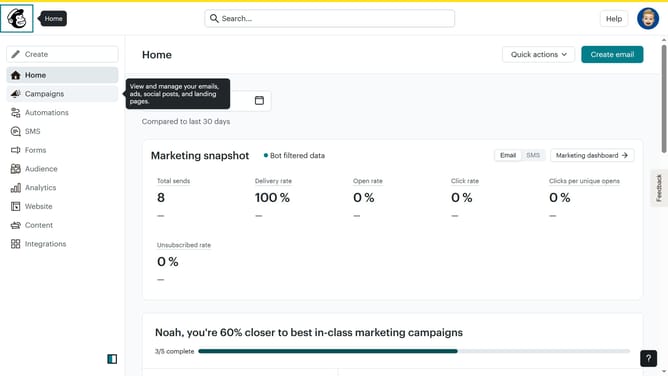
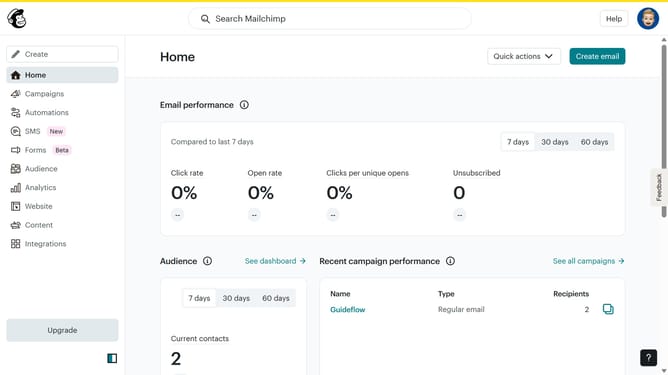
- First, click on the "Campaigns" item in the left sidebar
- Then, click on the "Edit" button
- Next, click on the "Edit design" button in the bottom right corner
- After that, click on the "Success Spotlight" text within the campaign content
- Then, highlight the text that you want to make changes
- Next, click on the "A" icon with a strikethrough which is above the text input
- Then, click on the color picker to select a color
- Finally, click on the purple color picker to select a new color
Why should you change column font color in a free email campaign in Mailchimp
Mailchimp is a powerful tool designed to simplify email marketing for businesses of all sizes.
Among its many features, changing the column font color in a free email campaign allows users to enhance visual appeal and align their message with brand colors. A well-chosen font color can draw attention to key information, ensuring messages are both impactful and easy to read.
Using this feature creatively supports your brand identity and ensures that your emails stand out in crowded inboxes, improving engagement and click-through rates.
Last update