How to change board background color in Trello
Here is how to change board background color in trello
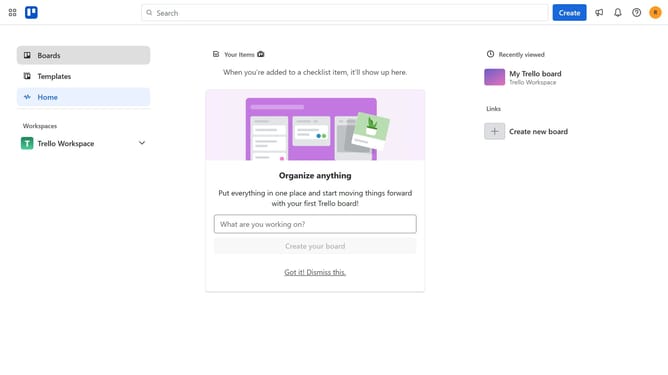
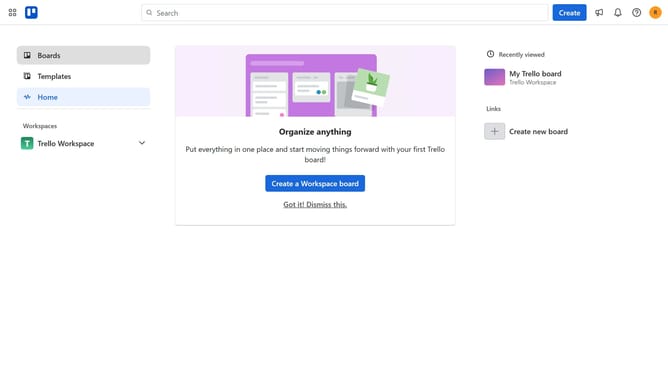
- First click on the "Boards" option in the left sidebar menu
- Then click on the workboard you want to change the background in the workspace section
- Next click on the menu button (three dots) in the top-right corner of the board
- Then click on the "Change background" option in the dropdown menu
- Next click on the "Colors" tab in the background selection dialog
- Finally click on the desired background color from the color selection menu
Why should you change board background color in Trello
Trello is a versatile project management tool designed to streamline collaboration and task organization.
One of Trello's handy features is the ability to change board background colors. This allows users to personalize their workspace, making it visually appealing and easier to navigate.
Customizing board backgrounds can help foster creativity and improve focus, as it provides a unique environment tailored to team needs.
Furthermore, using different colors for different boards can enhance productivity by offering clear visual cues, helping users quickly differentiate between projects or tasks.
Last update