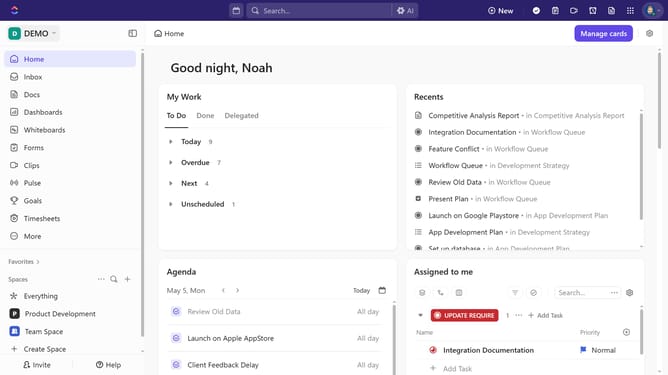
How to change a Gantt view time period in ClickUp
Here is how to change a gantt view time period in clickup
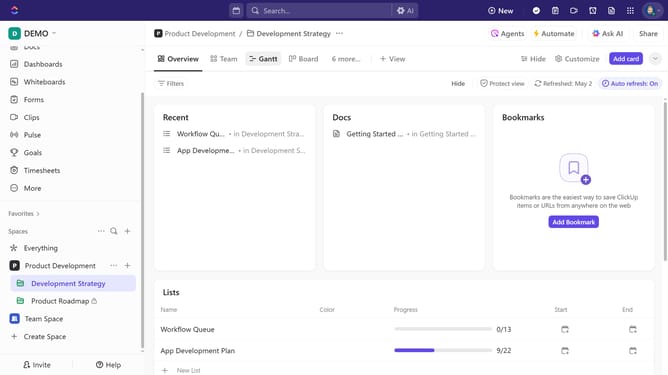
- First, click on your Gantt view from the Views Bar at the top
- Next click on "Auto fit" option in the view toolbar to automatically adjust and display all scheduled tasks
- You can also click on the "Time period" dropdown menu
- Then select a new time period from the dropdown menu
Why should you change a Gantt view time period in ClickUp
ClickUp is a versatile project management tool designed to streamline team collaboration and boost productivity.
Changing the Gantt view time period in ClickUp helps you tailor the timeline display to match your project's needs. With this feature, you can easily switch between daily, weekly, or monthly views, ensuring you're always in sync with your project’s progress.
This flexibility allows for better planning and resource allocation, as it lets teams focus on both immediate tasks and long-term goals, enhancing overall project management efficiency.
Last update