How to block untrusted links in Intercom
Here is how to block untrusted links in intercom
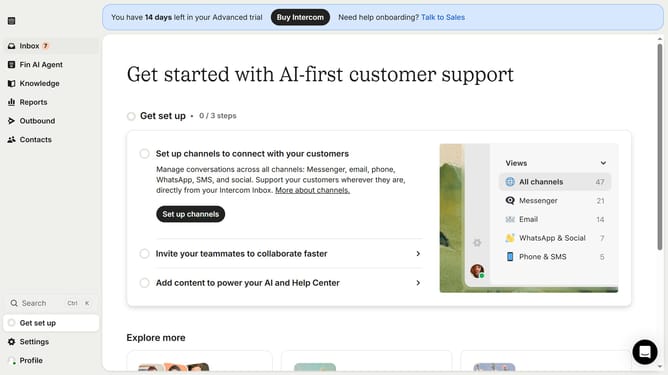
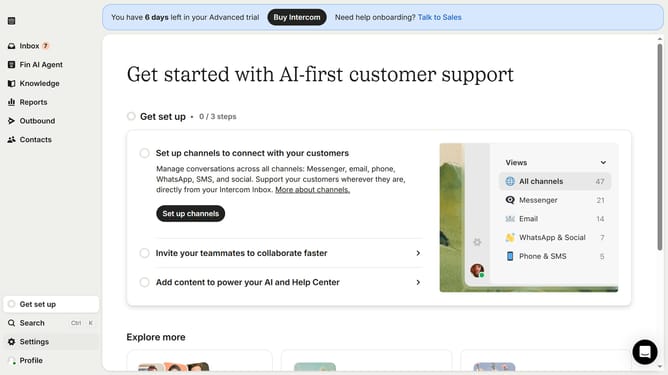
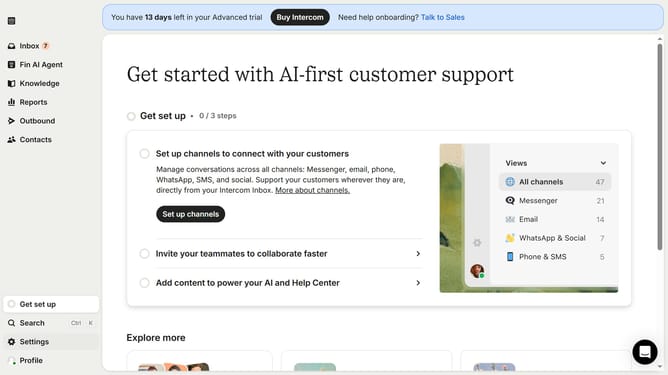
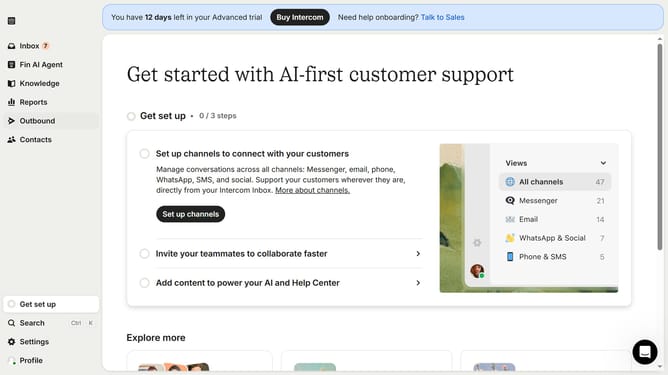
- First click on the "Settings" option in the left sidebar menu
- Then click on "Workspace" section in the settings menu
- Next click on "Security" option under the Workspace submenu
- Click on "Links" section in the Security settings
- Click on "Add policy" button to create a new link policy
- Click on the dropdown menu in the Add policy dialog
- Select "URL" option from the dropdown menu
- Enter the URL in the URL input field
- Select "Blocked" radio button to block access to this URL
- Finally click on "Save policy" button to apply the new link policy
Why should you block untrusted links in Intercom
Intercom is a powerful communication platform designed to enhance customer interactions and support.
The ability to block untrusted links in Intercom is a key feature that boosts security by safeguarding users from malicious content. This feature ensures that only reliable links are shared within exchanges, fostering a safer communication environment for everyone.
By using this feature, businesses can protect sensitive information and maintain trust, ultimately enhancing their reputation and ensuring peace of mind for their customers and team members alike.
Last update