How to adjust image fit in a help center category in Gitbook
Here is how to adjust image fit in a help center category in gitbook
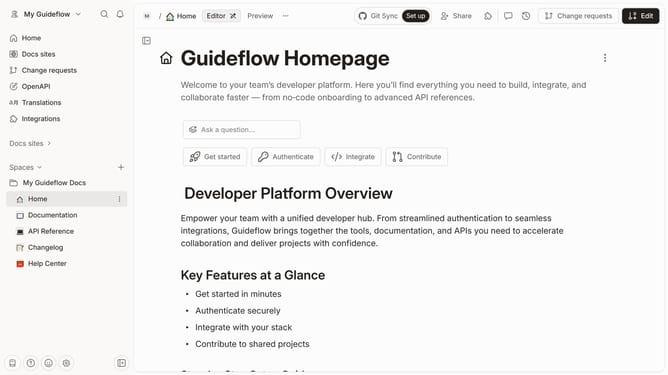
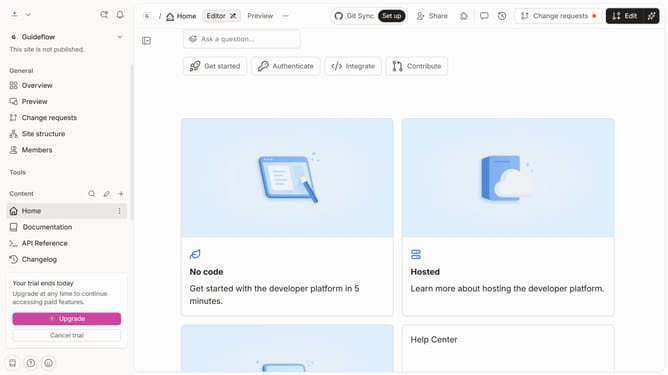
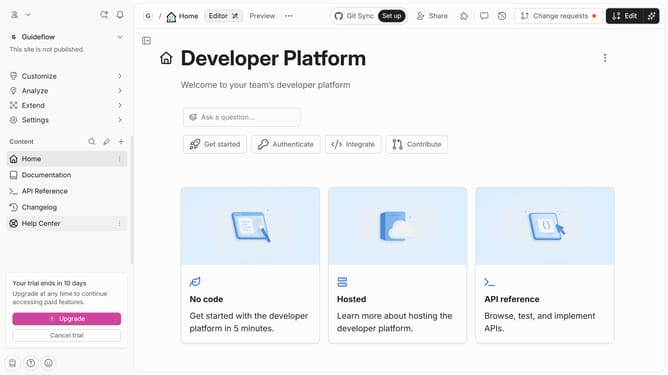
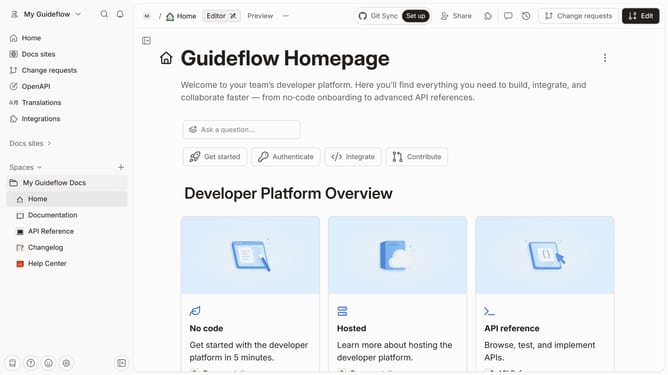
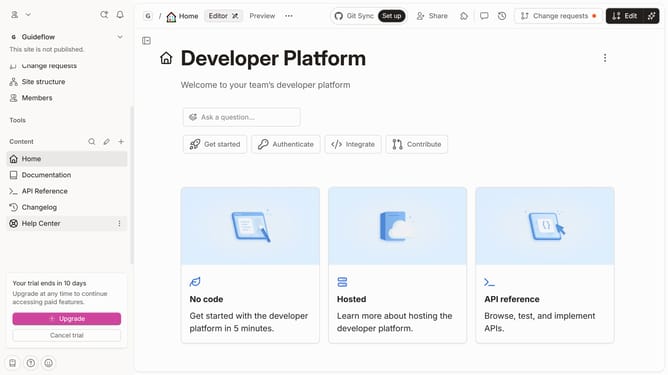
- First click on "Help Center" in the sidebar
- Then click on the "Edit" button in the header
- Next, click on the card options icon (four dots) for the category card
- Then select "Cover" from the options menu
- After that, click on "Image fit" in the submenu
- Next, click on "Fill available space" in the nested submenu
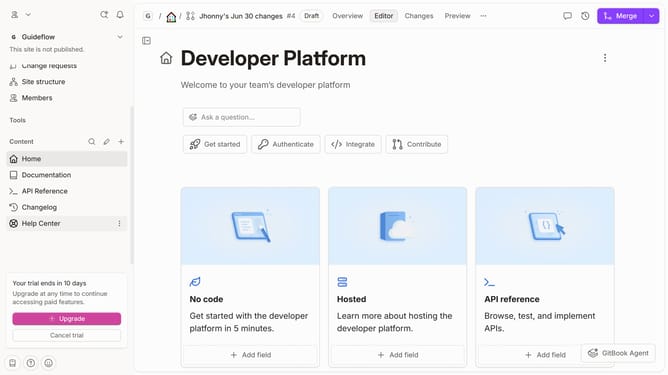
- Finally, click on the "Merge" button in the header
Why should you adjust image fit in a help center category in Gitbook
GitBook empowers teams to document everything from products to internal knowledge seamlessly.
One standout feature is the ability to adjust image fit in a help center category. This feature ensures your visual content aligns perfectly with your text, enhancing the aesthetic and readability of your documentation.
Utilizing this feature not only improves the visual appeal but also optimizes content clarity, making it more engaging for readers. This leads to a more effective dissemination of information and a better user experience overall.
Last update