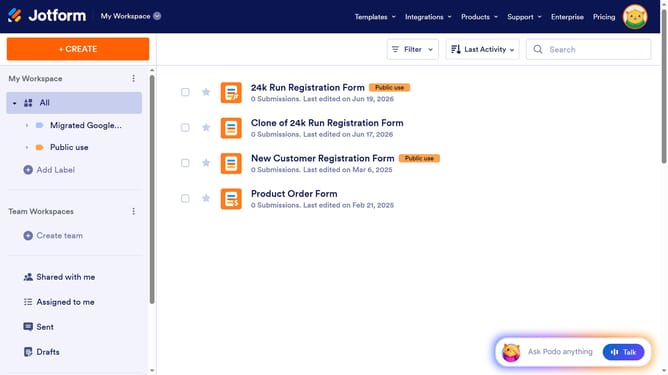
How to add options in a dropdown field in a registration form in Jotform
Here is how to add options in a dropdown field in a registration form in jotform
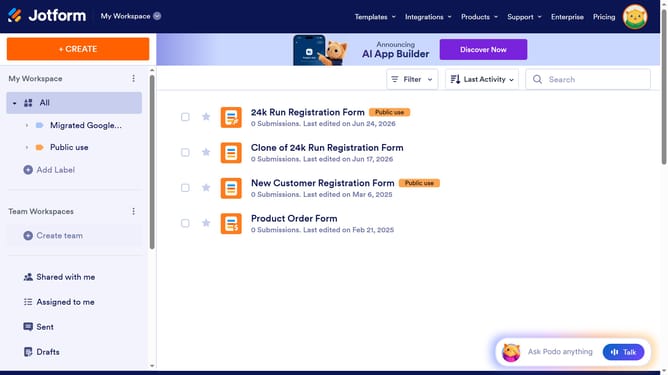
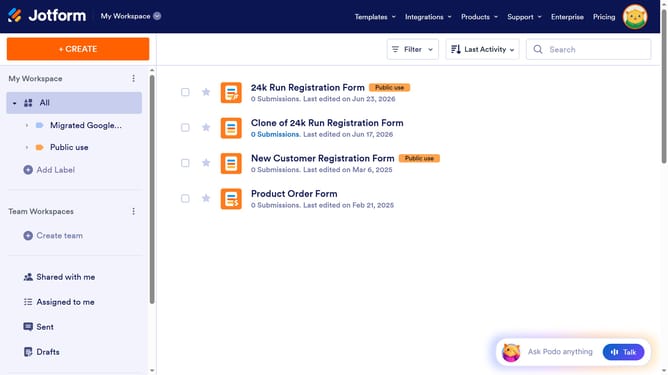
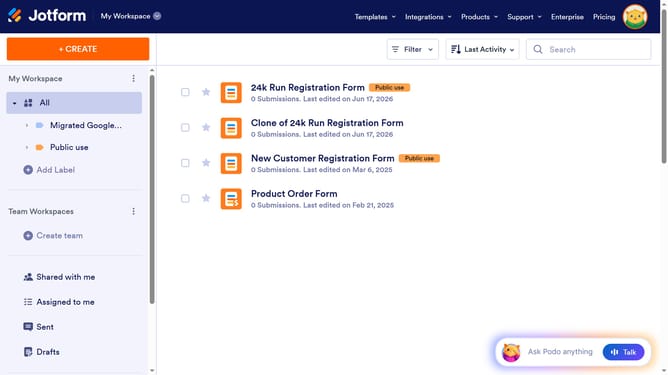
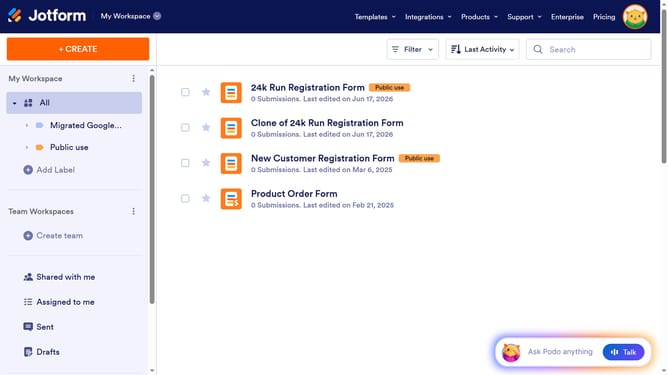
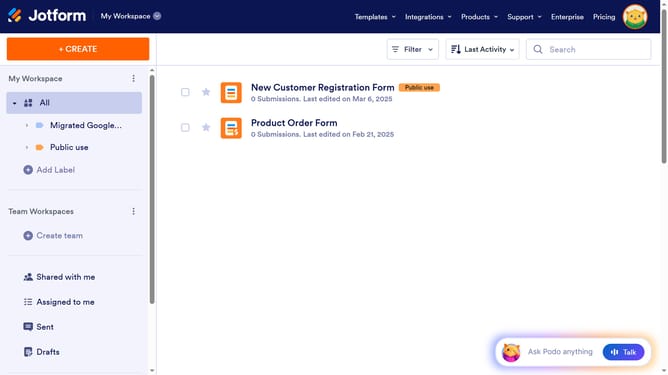
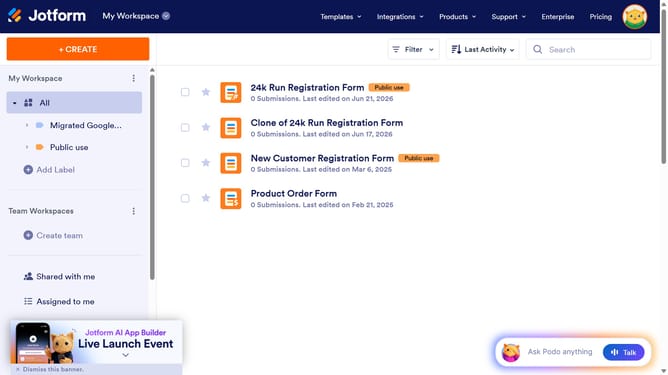
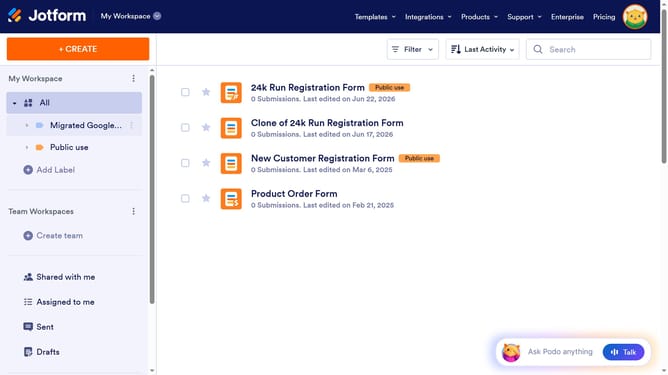
- First, click on the "All" option in the left sidebar
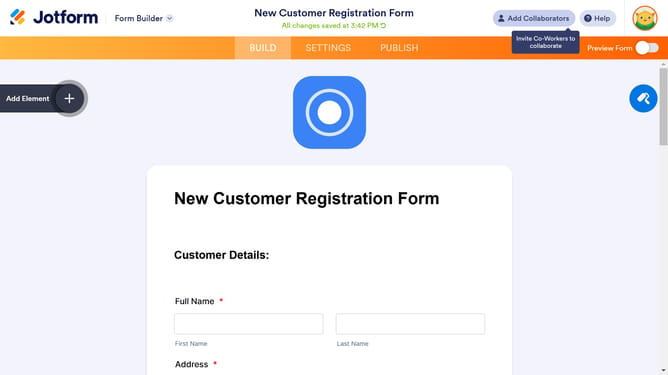
- Next click on "Edit Form" button at the right side of the form name that you want to edit
- Next, click on the dropdown field option in the form builder
- After that, click on the gear icon to view dropdown properties
- Then, click on the "Options" tab in the "Dropdown Properties" panel
- Next, click on the dropdown options field and enter your preferred options
- Finally, click outside the text field to save inputs
Why should you add options in a dropdown field in a registration form in Jotform
Jotform is an intuitive online form builder designed for seamless custom form creation.
Adding options in a dropdown field within Jotform's registration forms enhances customization effortlessly. This feature allows for providing users with predefined choices, streamlining data collection and ensuring accuracy.
Utilizing dropdown options simplifies the form-filling experience, minimizing user input errors and enhancing form clarity. It ensures orderly data processing, making it a smart choice for efficient form management.
Last update