How to add checkbox custom field in Trello
Here is how to add checkbox custom field in trello
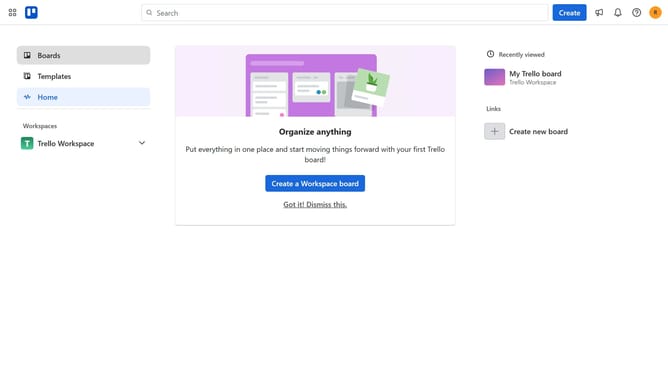
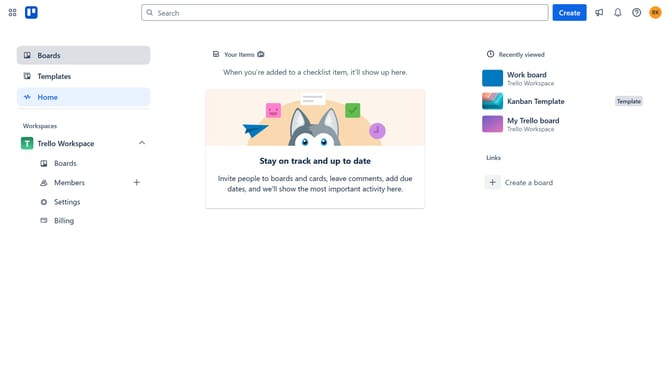
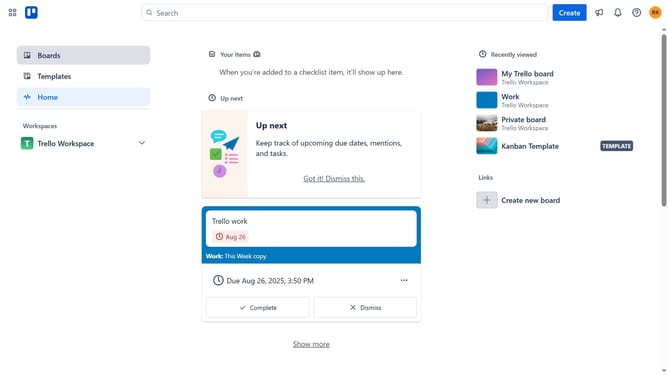
- First click on the "Boards" option in the left sidebar
- Then click on the "Work" board tile in the workspace section
- In the board view, click on the "More" menu (three dots) in the top-right corner
- From the board menu, select "Custom Fields" option
- Click on "New field" button in the Custom Fields panel
- Click the title input field and type in your desired title for your checkbox custom field
- Click on the "Type" dropdown menu
- Select "Checkbox" from the field type options
- Finally, click the "Create" button to add the new checkbox field
Why should you add checkbox custom field in Trello
Trello is a versatile project management tool that helps teams stay organized and collaborative.
The ability to add a checkbox custom field in Trello enhances users' ability to track tasks with precision and clarity.
This feature offers a simple, visual way to monitor task progress, as it empowers team members to swiftly indicate task completion directly on cards.
Ultimately, using checkbox custom fields in Trello bolsters productivity by ensuring that nothing important slips through the cracks.
Last update