How to add a world clock extension to a base in Airtable
Here is how to add a world clock extension to a base in airtable
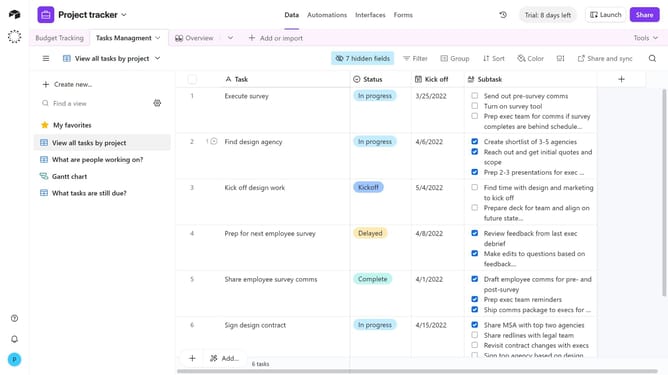
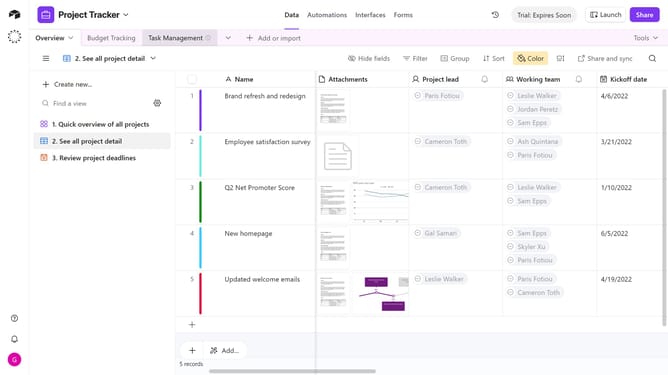
- First, open the base where you want to add the extension
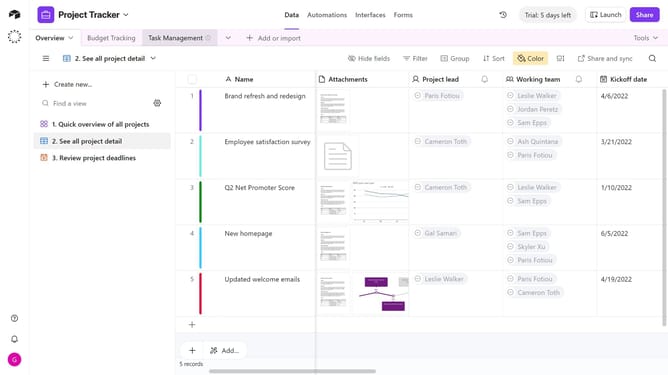
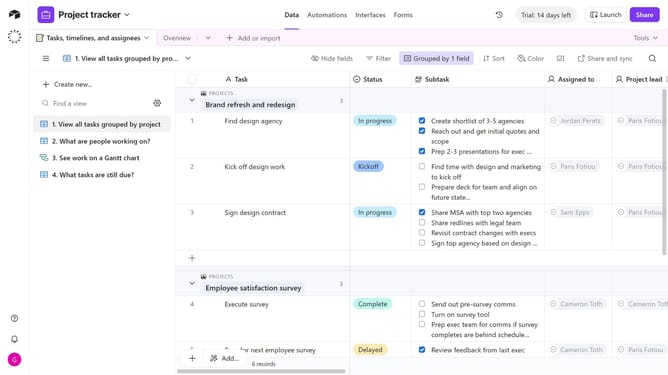
- Next, click on the "Tools" dropdown button in the top toolbar
- Click on "Extensions" option from the dropdown menu
- Then click the "Add an extension" button in the extensions panel
- In the Marketplace Extensions page, click on the search field and type "World Clock"
- Click on the "Add" button next to the World Clock extension
- When prompted, click the dropdown menu and select which dashboard to add the World Clock to
- Finally click the "Add extension" button to confirm installation
- You have successfully added the World Clock extension to your base. You can configure the settings as needed
Why should you add a world clock extension to a base in Airtable
Airtable is a versatile platform designed to streamline and organize your workflow with powerful database capabilities in an accessible format.
Adding a world clock extension to your Airtable base offers a practical solution for teams operating across multiple time zones.
By visualizing global times side by side, it enhances your team's efficiency, coordination, and scheduling prowess.
This feature is ideal for collaboration, ensuring every team member is synced and informed, regardless of geographical boundaries.
Last update