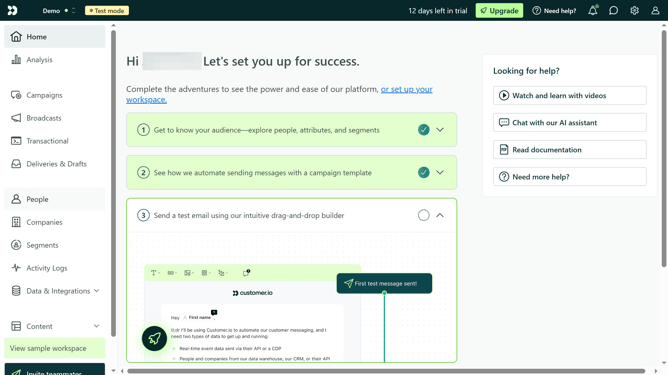
How to add a team member to your Customer.io account
Here is how to add a team member to your customer.io account
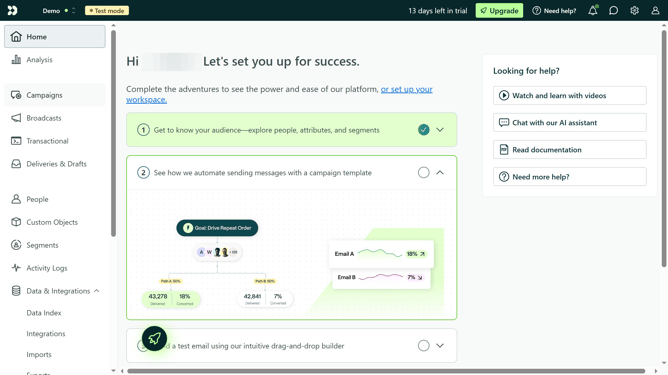
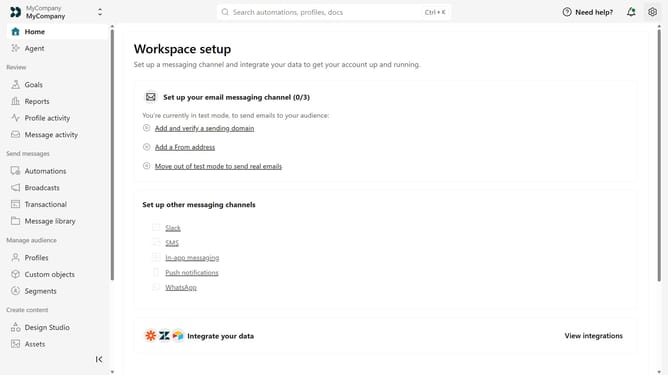
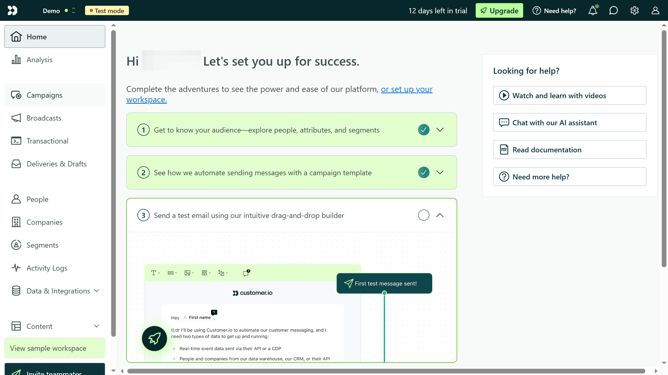
- First click on the settings icon in the top right corner
- Click on "Invite teammate" in the dropdown menu
- Next, enter the new team member's details
- Under "Match permissions", optionally select an existing team member to copy their permissions as a starting point
- Afer that, click on the "Member" dropdown menu under "Account level permissions"
- Then select "Member" or "Account Admin" from the dropdown menu
- If you select "Member", configure their workspace-level permissions by choosing "All" or "Custom"
- If you choose "Custom", assign the appropriate role to each workspace
- Finally click on the "Send invite" button
Why should you How to add a team member to your Customer.io account
Customer.io is a versatile platform designed to streamline your customer communication processes.
Adding a team member to your Customer.io account enhances productivity by distributing workloads efficiently. This feature fosters collaboration as different team members can manage their specific tasks seamlessly within the platform.
By expanding your team, you ensure that customer interactions are timely, personalized, and consistent, leading to improved customer satisfaction and retention. This benefit is invaluable for any business striving to maintain a strong relationship with its customers.
Last update